• How to get it right: “List records” just-first-record lookup value expression for CDS current connector

    Sometimes I use my own blog to find some information which I am keeping forgetting.

    I am always forgetting how to do THIS so I keep it here.

    Problem: from the list of items retrieved via List records action for CDS current connector i would like to pick up the first item and get the value of its lookup field.

    In my case I retrieve Work Orders and I am looking for the OOB Service Account field (msdyn_serviceaccount).

    Unfortunately, the result of the action in the All Runs history looks like this.
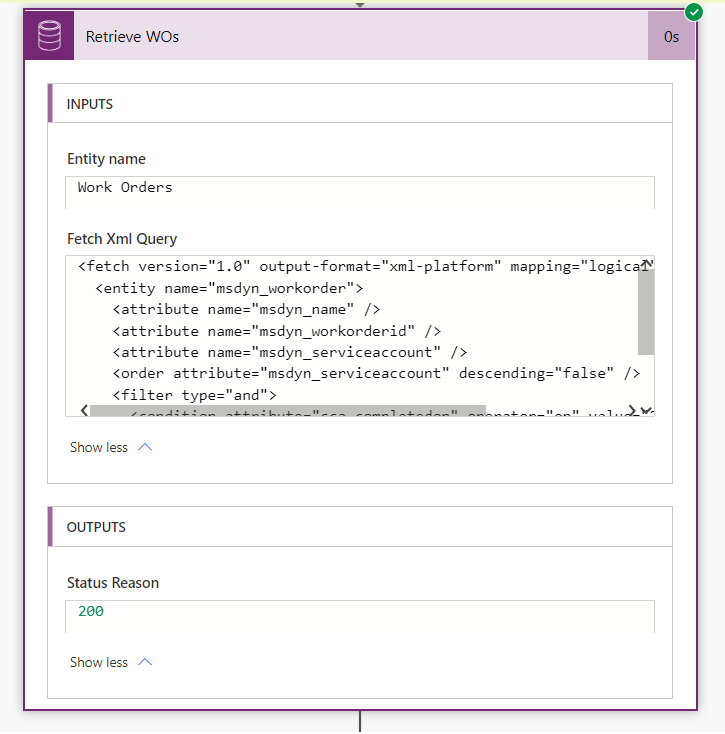
    Result of the List records action for WOs

    Which is extremely useful! NOT

    I added another action for the debugging purpose:
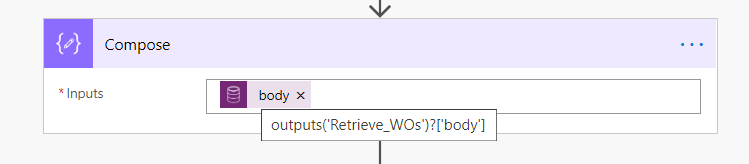
    Use Compose to inspect Output from WO retrieve action

    And I am using Compose here to inspect the Output from Retrieve WOs action.

    Compose for Output from WOs retrieve history
    {
    "@odata.context": "https://sas-sandbox.crm6.dynamics.com/api/data/v9.0/$metadata#msdyn_workorders(msdyn_name,msdyn_workorderid,_msdyn_serviceaccount_value,msdyn_serviceaccount,msdyn_serviceaccount())",
    "value": [
    {
    "@odata.type": "#Microsoft.Dynamics.CRM.msdyn_workorder",
    "@odata.id": "https://sas-sandbox.crm6.dynamics.com/api/data/v9.0/msdyn_workorders(368b9357-b743-e911-a978-000d3ae0bc37)",
    "@odata.etag": "W/\"941825332\"",
    "@odata.editLink": "msdyn_workorders(368b9357-b743-e911-a978-000d3ae0bc37)",
    "msdyn_name": "WO-1106064",
    "msdyn_workorderid@odata.type": "#Guid",
    "msdyn_workorderid": "368b9357-b743-e911-a978-000d3ae0bc37",
    "_msdyn_serviceaccount_value@odata.type": "#Guid",
    "_msdyn_serviceaccount_value": "5b8c464c-a743-e911-a978-000d3ae0f2e2",
    "msdyn_serviceaccount@odata.associationLink": "https://sas-sandbox.crm6.dynamics.com/api/data/v9.0/msdyn_workorders(368b9357-b743-e911-a978-000d3ae0bc37)/msdyn_serviceaccount/$ref",
    "msdyn_serviceaccount@odata.navigationLink": "https://sas-sandbox.crm6.dynamics.com/api/data/v9.0/msdyn_workorders(368b9357-b743-e911-a978-000d3ae0bc37)/msdyn_serviceaccount"
    },
    {
    "@odata.type": "#Microsoft.Dynamics.CRM.msdyn_workorder",
    "@odata.id": "https://xxxsandbox.crm6.dynamics.com/api/data/v9.0/msdyn_workorders(318f4f3a-b443-e911-a972-000d3ae0f413)",
    "@odata.etag": "W/\"941825383\"",
    "@odata.editLink": "msdyn_workorders(318f4f3a-b443-e911-a972-000d3ae0f413)",
    "msdyn_name": "WO-1106061",
    "msdyn_workorderid@odata.type": "#Guid",
    "msdyn_workorderid": "318f4f3a-b443-e911-a972-000d3ae0f413",
    "_msdyn_serviceaccount_value@odata.type": "#Guid",
    "_msdyn_serviceaccount_value": "3a3c2a89-c9e6-e711-8138-e0071b67ecd1",
    "msdyn_serviceaccount@odata.associationLink": "https://sas-sandbox.crm6.dynamics.com/api/data/v9.0/msdyn_workorders(318f4f3a-b443-e911-a972-000d3ae0f413)/msdyn_serviceaccount/$ref",
    "msdyn_serviceaccount@odata.navigationLink": "https://sas-sandbox.crm6.dynamics.com/api/data/v9.0/msdyn_workorders(318f4f3a-b443-e911-a972-000d3ae0f413)/msdyn_serviceaccount"
    }
    ]
    }

    It’s a fun expression time! We have to refer to the action “Retrieve WOs” output body first.

    body('Retrieve_WOs')

    And all the retrieved items will be inside “value”: []

    It’s going to be the array of items:

    body('Retrieve_WOs')?['value'])

    And we pick up the first one:

    first(body('Retrieve_WOs')?['value'])

    And then it’s “msdyn_serviceaccount_value” . Watch out the value bit.

    first(body('Retrieve_WOs')?['value'])?['_msdyn_serviceaccount_value']

    It’s kind of silly that I still struggle with it. I found a very good post here:

    https://grootcrm.net/tip-microsoft-flow-retreive-just-one-record-from-cds/

    which describes exactly the same expression and I managed to make mistakes while copying it then modifying. Probably because of the combination of [] and ().

    Now I have the place in my blog where I keep it permanently. No more struggle.

  • Power Apps Portal. “Value cannot be null” error.

    Breaking Power Apps portal is easy. But it takes time to fix what’s broken and sometimes it takes longer than you expected. I broke my portal couple of months ago and I thought I manged to repair it somehow. But some bits and pieces remained broken. Sometimes things stay broken but you don’t see it till you touch a very specific area or functionality. This is what happened to me. I will tell you what was broken at the end. But first…

    It started when we implemented Web Page Access Control rules. You need those to define an access to certain pages. You control it by specifying what user can do with the page by creating a Web Page Access Control rule and who is this user by linking the particular Web Role.

    When I was trying to access any custom portal page as a non-authenticated user I was getting this error below:

    The expected behaviour in this particular case would be a redirect to the page where user would be asked to log in to the portal. It worked this way on our Production environment but for DEV and UAT something went wrong.

    OK. My portal is broken so what do I do next?!

    First thing you can try when your portal doesn’t behave the way you want it to behave is to run checks. To find your useful Portal Checker from https://make.powerapps.com/ for your environment from the Apps right-click on your portal app then select Settings.

    In the Portal Settings window select Advanced options then Administration.

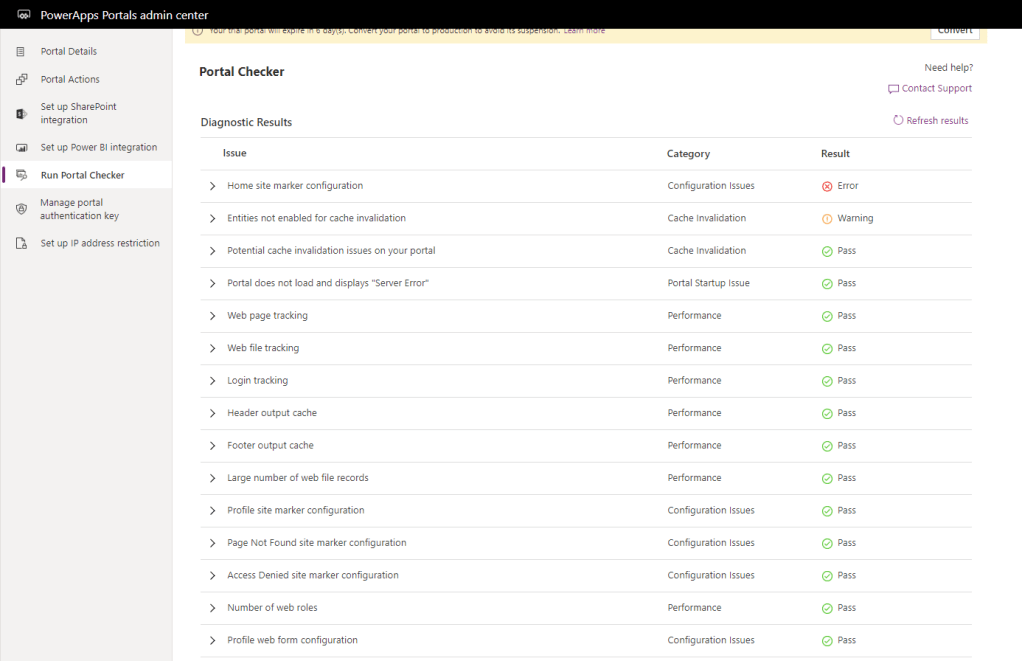
    It will open PowerApps Portals admin center for you in a new window. From the left navigation menu pick up Run Portal Checker then click on the Run Portal Checker button on the screen.

    After it run all the checks it displays you the report. You could easily see some issues if any. Well done for Pass but look closely for Warnings and Errors. This is a very helpful article describing each item in the report and how to fix if there is a problem in details: https://docs.microsoft.com/en-au/powerapps/maker/portals/faq

    I was very surprised to discover that my error is actually not an error at all. It just we renamed our portal Home page and currently tool doesn’t like it. Which is a bug, but not exactly our bug. It’s a bug in the tool. BUT…

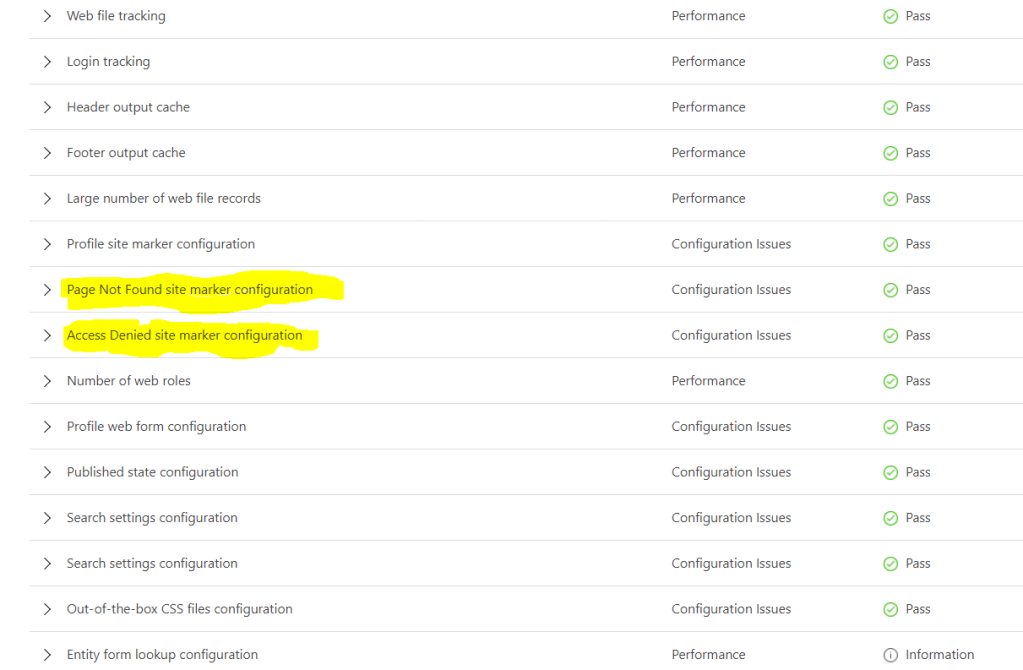
    You can’t see it on this screenshot because the issue is fixed but in our case we were missing Page Not Found page on the portal. Creating the page didn’t fix the issue, unfortunately. Fortunately, it gave us another clue. Well, I won’t guess it myself, I was directed by one very intelligent Microsoft professional. Our issue was related to Access Denied page.

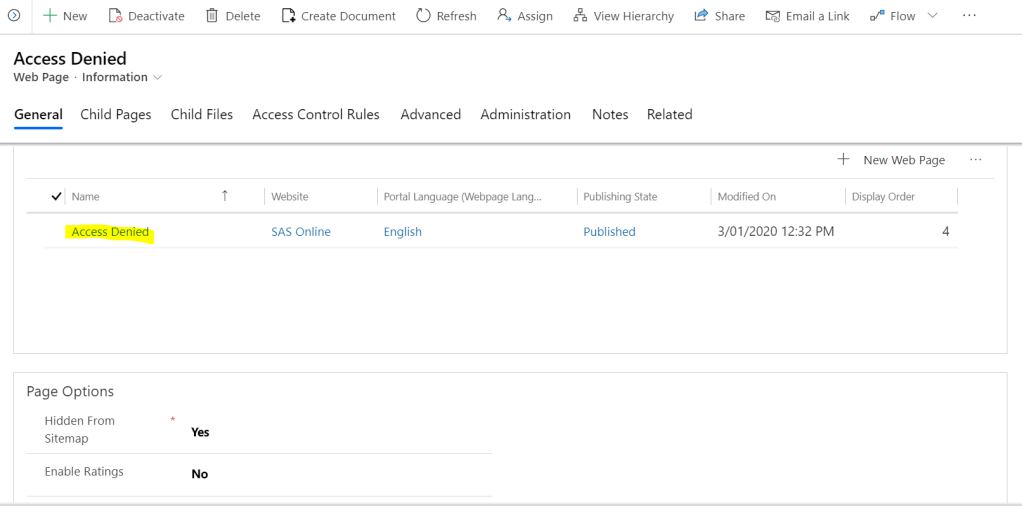
    I didn’t know this but Access Denied page is responsible for the redirect to Sign In on my Home page. It didn’t have a Parent page property populated for the localized page which was the actual cause of our issue.

    Populating this property for the page fixed our issue.

    I promised you to tell what was broken from the beginning. Many months before we discovered the issue I accidentally removed Home page. Completely removed Home page from the portal. It sounds crazy but it’s true. When I restored the page I had to manually re-link it to all child pages and files. I just missed the Access Denied page because I didn’t know about it significance to the portal.

  • Magic Christmas Power Apps game

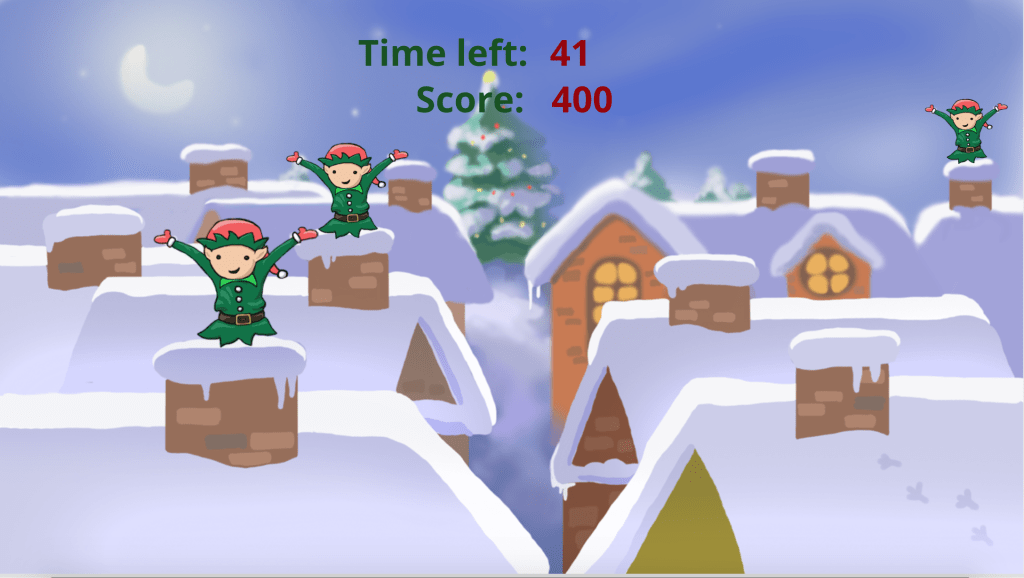
    This is a first part of the tutorial how to build a game on Power Apps platform. The second part is available here: https://medium.com/@andrew.grischenko/power-apps-game-tutorial-part-2-2-15233ad4bc4e


    I love making games.

    I started programming back then because I wanted to create a game. Since then I’ve made a few — either myself or with the teams.

    Here today I want to show you how you may have some fun too with a “boring” business applications platform. Creating games is NOT the purpose of this platform, but this exercise will help you understand some of its capabilities and show off at the end to your friends or family.

    If you haven’t even heard what Power Apps are, you can find heaps of info here, but my short blurb to help you get the head around it.

    Power Platform is Microsoft’s technology which provides low code solutions in creating business applications (Power Apps), process automation aka “robotics” (Rower Automate, previously known ad Flow), metadata-driven database (Common Data Services, CDS), analytics and reporting (Power BI) and a bot assistant (Power Assistant). It’s purpose to enable business create useful application quickly, without lots of time and money investment and low to none programming involved.Keep reading at Medium : https://medium.com/@andrew.grischenko/power-apps-game-tutorial-part-1-2-e60ee7f90899

  • While using CDS (current environment) connector for the Regarding property which is separately listed for each entity would you assume it’s unnecessarily to prefix a dynamic property value with a type ?

    Well, unfortunately, you have to. The same way as for other lookups, you have to specify type prior the dynamic property. In my case it looks like this:

    /accounts(dynamic property)

    Read this article below to learn more about CDS (current environment) connector: https://saralagerquist.com/2019/12/15/cds-vs-cds-what-connector-should-i-use-in-power-automate/

  • Not your Outlook Emails. Create and send Emails from Dynamics 365 via Flow using Common Data Service current connector

    Did you know you can actually create and send emails in a very similar way to how you did it with old fashioned workflows?

    Follow these “simple” steps below and say ThankYou to David Yack (MVP) for being awesome human being. You can say ThankYou to me as well 😊

    1. Start with a solution. Create a new solution or use an existing one. Within the solution from the top menu click New then click on Flow.
    • In the Power Automate search for Common Data Service (current environment). There are two of them and I you have to select that one which is (current environment).

    Select trigger which is suitable for your case.

    • Add a Create Entity action for Common Data Service (current environment). Select the action as per the screenshot highlighted.
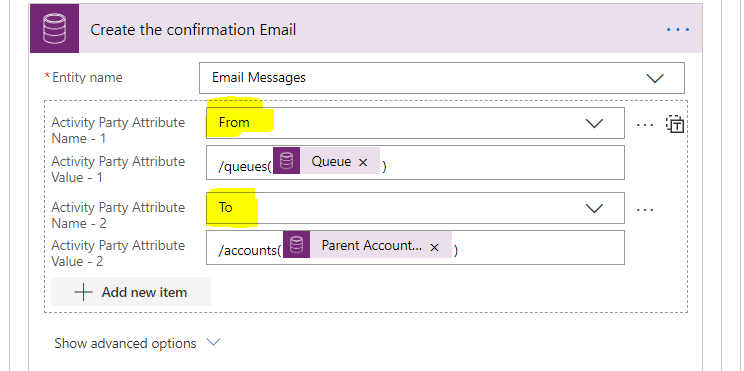
    • Select Email Message as Entity name. Define From and To activity parties following the rules in the screenshot below.

    This action will create an email on your CDS environment.

    To send the email you need to add one more step.

    5) We will be sending the email using Perform a bound action.

    That’s it! Easy … kidding.