Populating Word template with the CDS image field content via Flow (Power Automate)

This is a great video which helped me on a way: https://www.youtube.com/watch?v=-1jsBllmr-w

However, in this video it takes image from OneDrive but I want to populate it from CDS image field.

  1. Add image control to a Word template. Watch video I referred above showing how to add controls step by step then come back for the image adding part.
Image control inside Word template.

2. This is my image store in CDS:

CDS image displayed on a Job form.

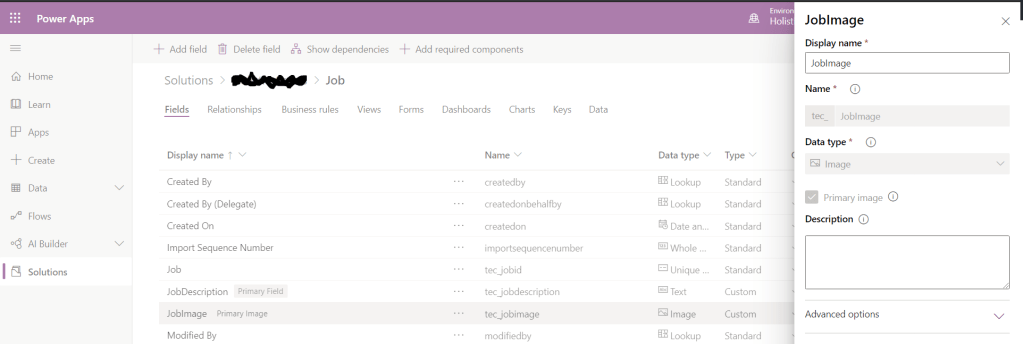
3. And a CDS field set up.

CDS image field setup.

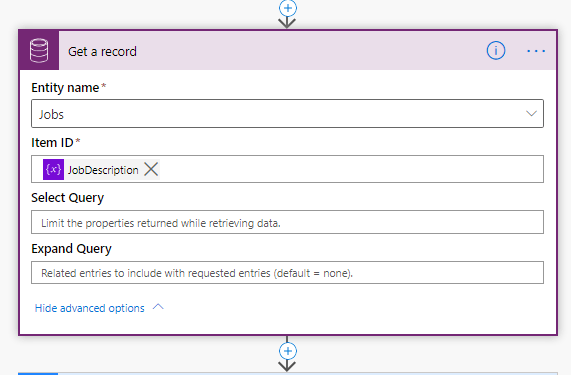
4. And now Flow:

Get record CDS connector action to retrieve the record with image.
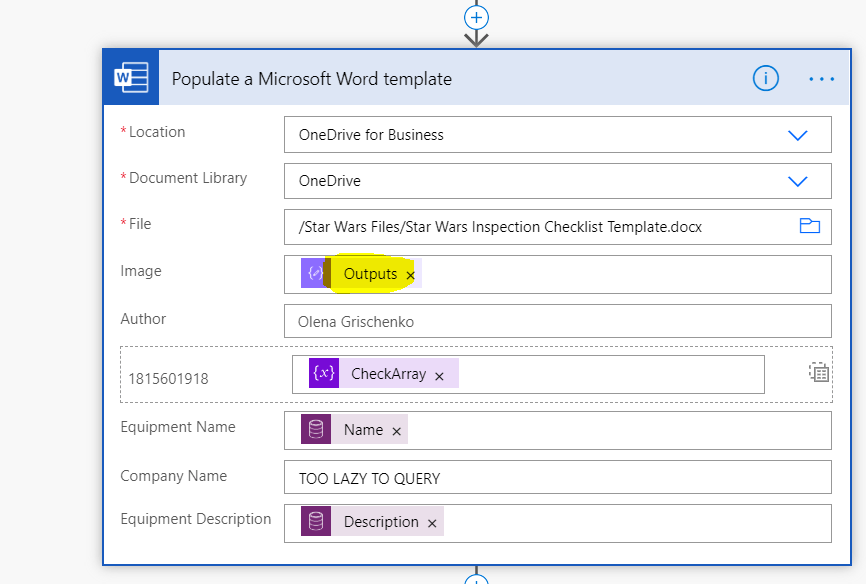
Populate Word template action with the image control placeholder and compose output content.

Here JobDescription and JobImage are fields of a Job entity.

5. A bit of actions outputs to see how image is stored:

Get record CDS connector action
Image string in the output for get record

The format is: application/octet-stream.

According to docs(https://docs.microsoft.com/en-nz/connectors/wordonlinebusiness/#populate-a-microsoft-word-template):

Guide for using Images in the Word Online connector.

  1. Add an Image content controller in your template. Don’t delete the placeholder image. You can re-size and re-position it.
  2. Add a title property to the image content controller so that you can easily identify it in the Power Automate designer.
  3. When the image field shows up in the designer, add file contents of a JPG or PNG image as the value. The value should look like this: { “$content-type”: “image/png”, “$content”: “iVBORw0KG…i/DhQmCC” } where the content is the base64 encoded image.

6. That’s why we use Compose to construct the required JSON:
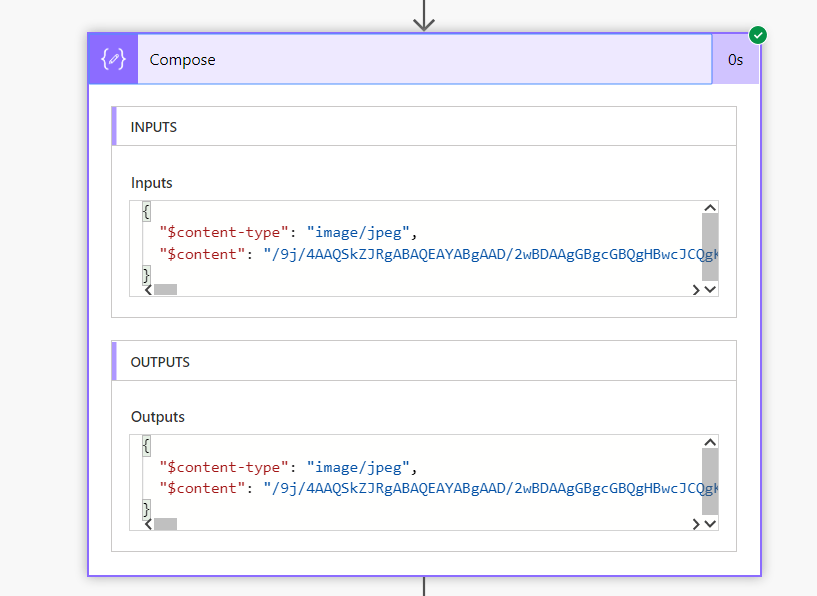
JSON composed with the dynamic image field

7. And the result in the generated document as expected:

Image generated from CDS in the document template populated

Hope it helps!

Update: the version I described retrieves a thumbnail image. Microsoft released the CDS action since then Get file or image. https://docs.microsoft.com/en-us/connectors/commondataserviceforapps/#get-file-or-image-content?WT.mc_id=BA-MVP-5003463

This action retrieves the original image (if you choose to store one) from Azure BLOB. Then you need to apply base64(…) function and compose the JSON as per screenshot below:

Feeding the Output of the Compose to your Populate Word template action
If you are interested in more doc generation info watch my video here:

Posted in , ,

11 responses to “Populating Word template with the CDS image field content via Flow (Power Automate)”

  1. miraghaly Avatar

    Reblogged this on MG and commented:
    Populate Image to Word Template

    Like

    1. HS Avatar
      HS

      Is it not possible to get the original picture? I get only the small one.

      Like

      1. Olena Grischenko Avatar

        I’ve updated the article. Please let me know if there are more questions. Thank you for pointing out. I created the article when Get Image… action haven’t been released yet. Now we’ve got more power.

        Like

    2. HS Avatar
      HS

      Hi. Thanks a lot. That fixed the problem.

      Liked by 1 person

      1. Olena Grischenko Avatar

        You are welcome. Im glad I could help

        Like

  2. Corey Avatar
    Corey

    Hi –

    Would it be possible to populate CDS images on a repeating control? (i.e. populating a list of contact entityimages) in a word template.

    Like

    1. Olena Grischenko Avatar

      Hi Corey,
      Unfortunately, it wasn’t possible/supported a month ago. But the platform is keeping changing so we have to watch the space.
      Cheers,
      Olena

      Like

  3. […] You can read more details on this topic from Olena Grischenko's blog post about Populating Word template with the image field content from Microsoft Dataverse. […]

    Like

  4. DavidW Avatar
    DavidW

    I am having a lot of trouble importing pictures into a Word Template with repeating content sections, I’ve made sure the array is formatted correctly and the $content is base64 but it does not work. It only works if it isn’t inside a repeating content section, any ideas?

    Like

    1. Olena Grischenko (she/her) Avatar

      Unfortunately it was always the case. I could try to follow up with the product team to see if any improvements are planned.

      Like

Leave a comment