I would like to share my recent experience with loading a CSV file via Dataflow to Dataverse with you.
Today, I downloaded the list of leads from the conference we sponsored last week. There is no better way to load it to my sales app on Dataverse – it’s a Dataflow way! At least for me 👀. I needed to transform columns to combine all extra information available into a big Description column. Also, I needed to add a custom lead source column. All of it can be done in PowerQuery so I created a new Dataflow:
Create Dataflow
Then picked up a Text/CSV file as a data source.
PowerQuery – Data source
Then I started panicking because I realised that I forgot to copy my file to OneDrive. 😱
PowerQuery – connect to datasource – Browse OneDrive
Dont’ worry and be brave! Click on Browse OneDrive…
Browse OneDrive or load from your local
Here some serious magic happens. If you are one of those people forgetting to copy files upfront, like me, you will find this functionality very useful.
Load file from your local.
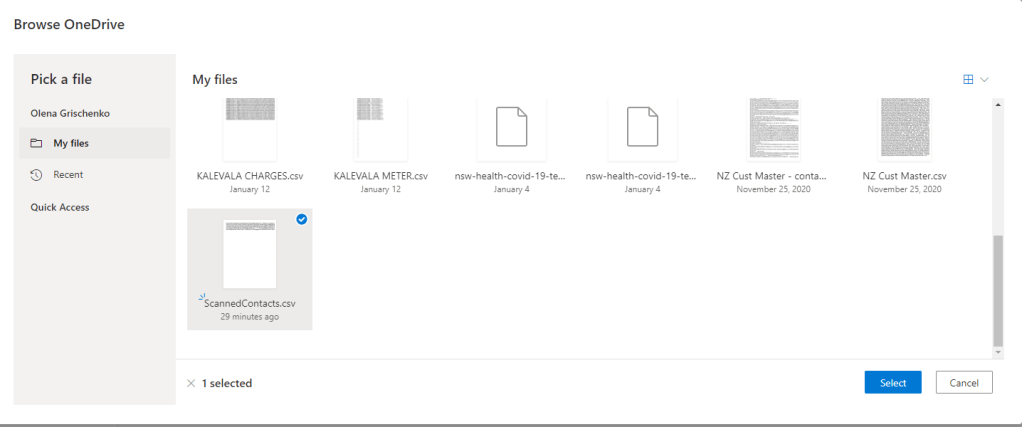
Just upload your file here then select the file and – no worries!
Browse OneDrive – Select file
Thank you very much, Microsoft! You just made my day.
It’s Monday. I’m too tired to slap you. Could you please bash your face against my palm?Respond to PowerApp or flow action
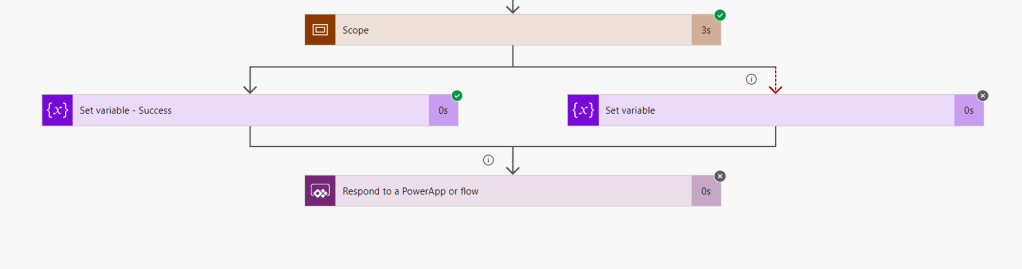
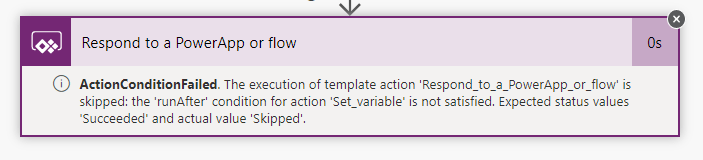
Respond to PowerApp or flow action doesn’t get triggered. I wonder why…
Respond to PowerApp or flow action doesn’t get triggeredActionConditionFailed
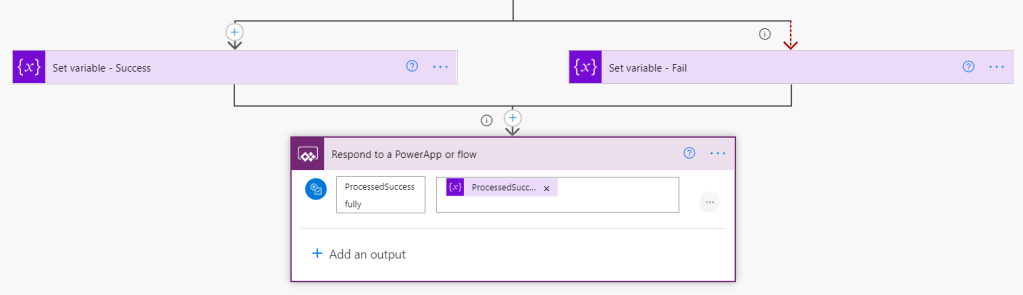
I’ve got two actions leading to Respond to a PowerApp or flow is the outcome of the Scope in case of a success and a failure in the parallel branch.
What I am trying to achieve here, really, is to pass a result variable regardless of the result of both actions.
Here we have to pay attention, because the magic doesn’t happen automatically.
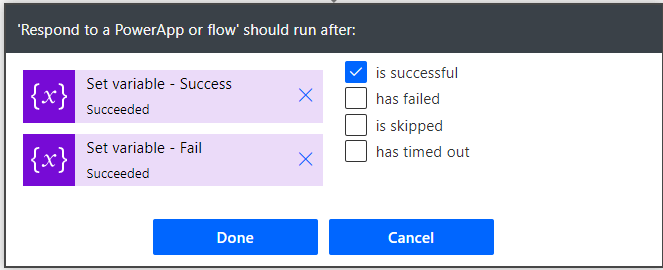
This is how it looks by default:
You may think “Easy! I will tick all checkboxes and happy days!”
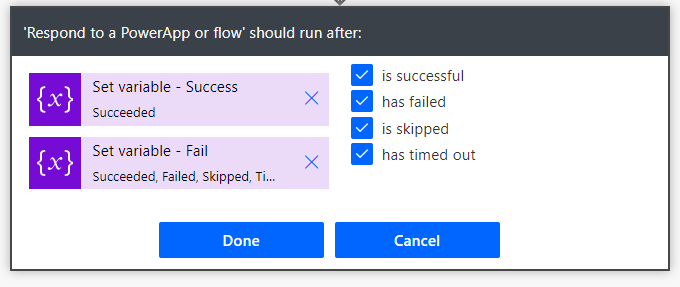
I did. Not good enough.
In case of Failure the second condition will be satisfied but the first one will be skipped because it’s gone to the Fail branch but it has to be Succeeded according to the screenshot for Respond to a PowerApp or flow action to be triggered.
Crazy! Crazy for 8PM on Monday. What do we do?
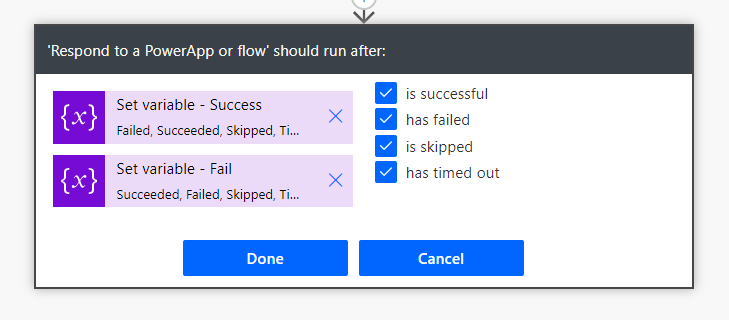
We click on all checkboxes until we see all values appear for each action as per the screenshot below.
I would say “Easy!” but said many bad words prior getting the result which satisfied me.
So … It’s good I could get it working.
Can someone please show me the shortcut to Friday???
I haven’t had any issues with simple type fields but I stuck with lookups. Remembering my first time exploring the portal Web API, I didn’t run into this issue. Or maybe it worked slightly differently during that times.
There are some articles in Internet which are helpful to degree but I still couldn’t get it working.
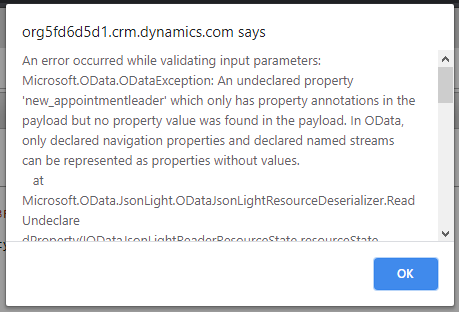
I was experimenting and while making another change to the code started getting the following error:
“An error occurred while validating input parameters: Microsoft.OData.ODataException: An undeclared property ‘my_property’ which only has property annotations in the payload but no property value was found in the payload. In OData, only declared navigation properties and declared named streams can be represented as properties without values”
This is how I found this article of Carl De Souza 💖
As you know I am a very big fan of Dataflows. The biggest ask from me was always the ability to trigger the Dataflow refresh on demand from a Power App.
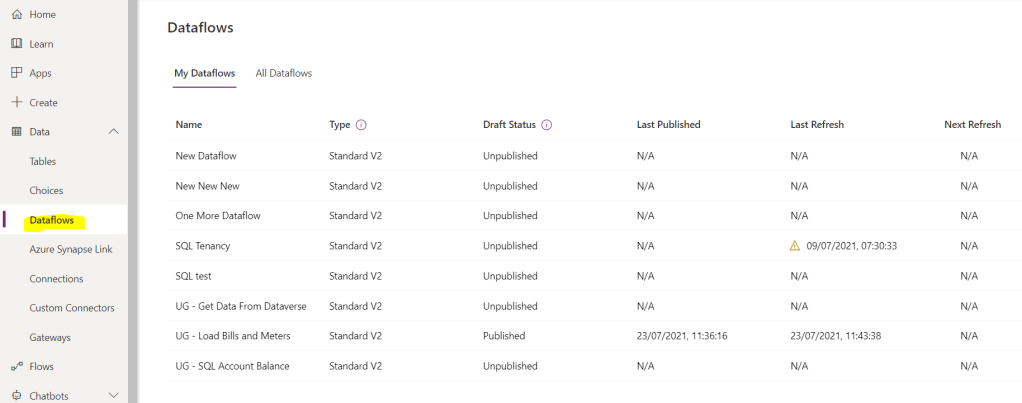
Initially, Dataflows you could only run from the maker portal. You need all sort of “powerful” security roles and permissions to do so.
Dataflows on a maker portal
As a user I want an ability to trigger a bulk import with Dataflows from Power Apps UI.
As an admin I want my users with the restricted security roles to be able to successfully run Dataflows from Power Apps.
Previously, we used a very resource consuming workaround to make this happened for our users.
Last month we’ve got proper tools for this with the new Power Automated trigger and action.
This how you could implement the bulk import trigger from Power Apps for Dataflows via Power Automate.
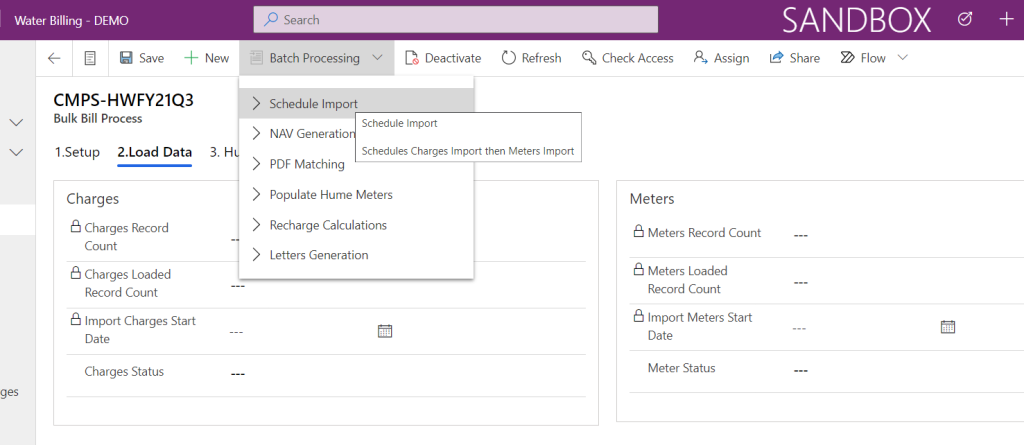
Step 1.Add a custom ribbon button to initialise the import.
You could do it with a traditional Ribbon Workbench way or a new and fancy way:
Your button will trigger a JavaScript function. My function looks like this code below:
 this.StartChargesImport = function (formContext) {
        'use strict';
        Xrm.Utility.confirmDialog('Are you sure you want to schedule bills and meters import for this batch? It will take aprox. 15 min for files to load. Please check your notifications and review the Process record for the updates.',
            function () {

                //populate start charges import date to trigger flow
                var startChargesImportDate = formContext.data.entity.attributes.getByName("tm_importchargesstartdate");

                if (startChargesImportDate == null) return;

                var currentDate = new Date();
                startChargesImportDate.setValue(currentDate);

                formContext.getAttribute("tm_chargesrecordcount").setValue(0);
                formContext.getAttribute("tm_chargesloadedrecordcount").setValue(0);
                formContext.getAttribute("tm_chargesstatus").setValue(801090001);

                formContext.ui.tabs.get("LoadData").setFocus();

                formContext.data.entity.save();
            });
    }
It updates the import start date and the status on the process header, also resets load records counts. THe record gets saved the next step will be…
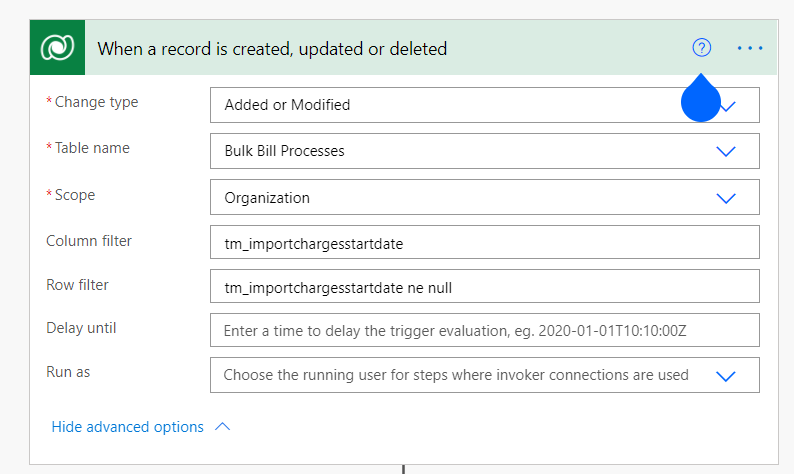
Step 3. Dataverse connector -> When a record is created, updated or deleted Power Automate
Set one of the fields you updated from the JavaScript above as a column filter on your trigger. I set it to the Import Charges Start Date field.
Dataverse Power Automate trigger
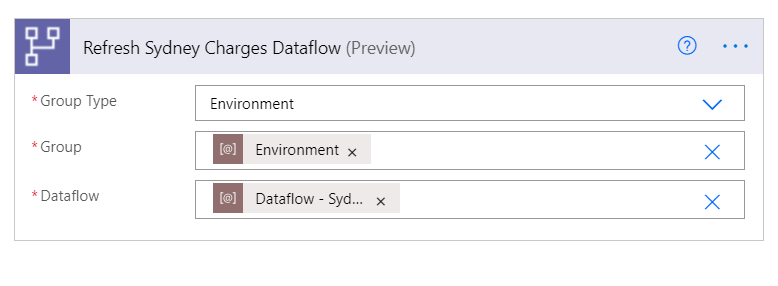
Do whatever you need to do in your Power Automate flow then call the following action:
Power Automate refresh Dataflow action.
We use environmental variables for Group and Dataflow name.
Your Dataflow refresh settings has to be set to manual:
Power Query – refresh manually
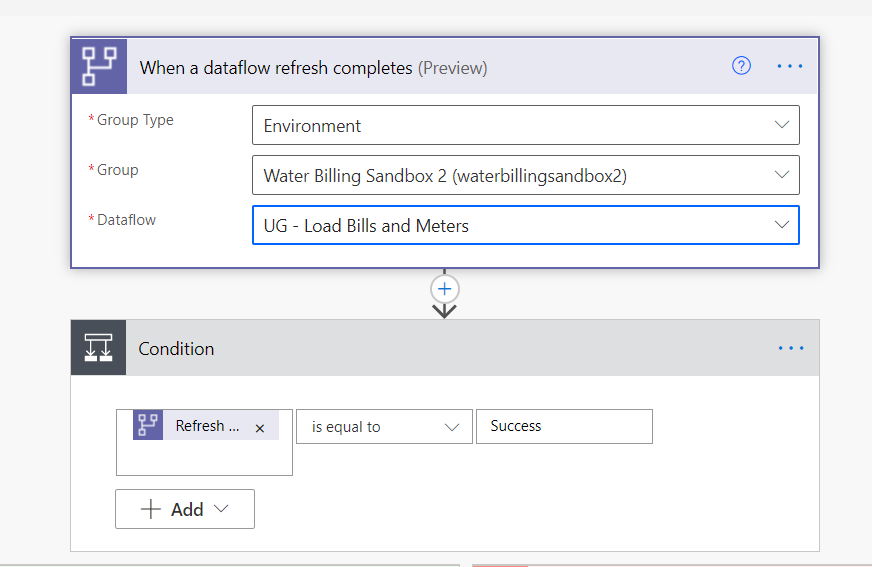
Step 4. When a Dataflow refresh completes trigger for Power Automate.
It’s an example of the refresh complete. No environmental variables here. We do it differently in our production system at the moment. But here you could check if the refresh was successful then update your record counts and statuses or send error messages to the Team channel if the run has failed.
When a dataflow refresh completes trigger.
This completes the whole ‘magic button” story to me.
Please comment or message me if you want to talk about Dataflows or Power Platform.
This is the second part I advertised created by Mira and all implementation credits go to her as well 😎:
“I have been Exploring with Olena (https://msolenacrm.blog/) how to enable the azure storage on PowerApps portals and she has figure out and detailed on her article how to enable azure blob storage on PowerApps portal so when a note is uploaded from portal it is saved to Azure blob storage and that’s worked perfectly fine and was shown very nice on the DataVerse model driven app !“












 Olena's Dynamics Blog (post-AI)