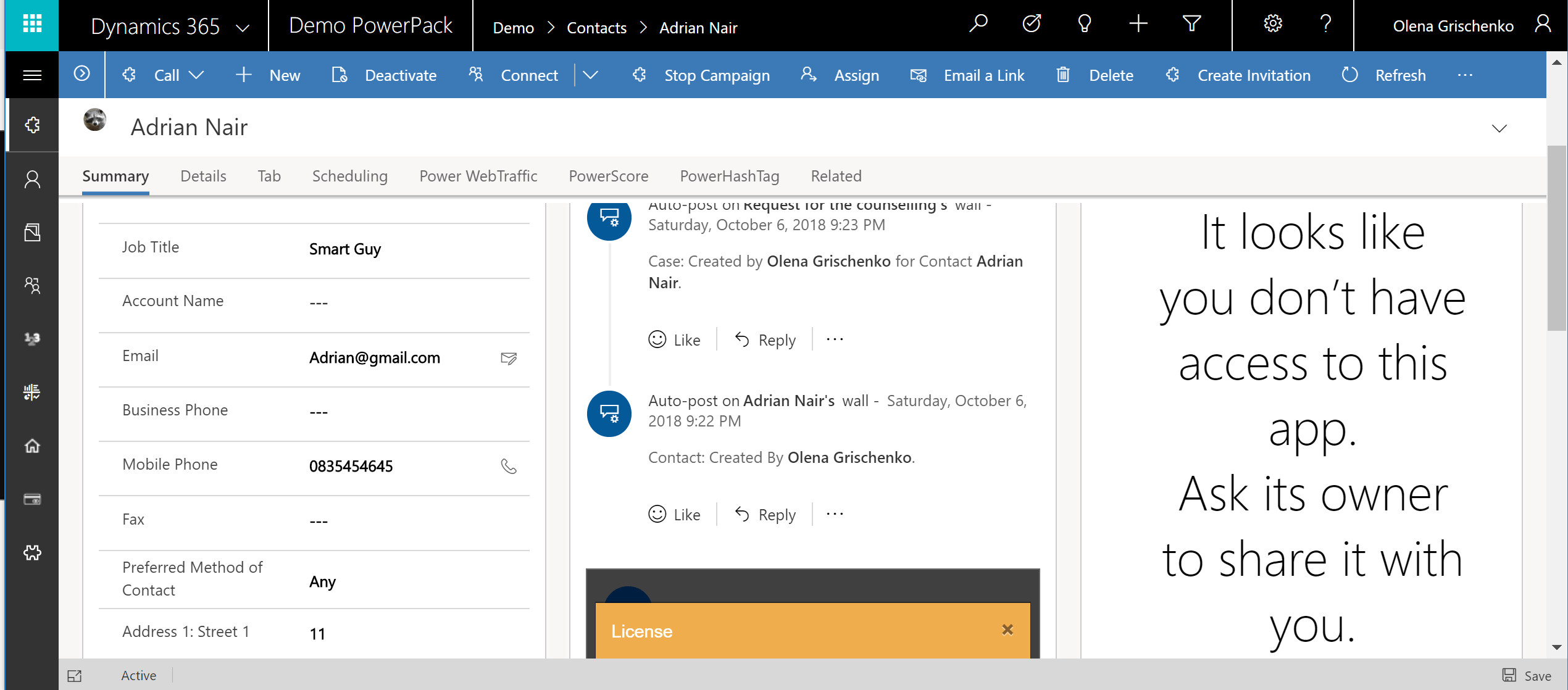
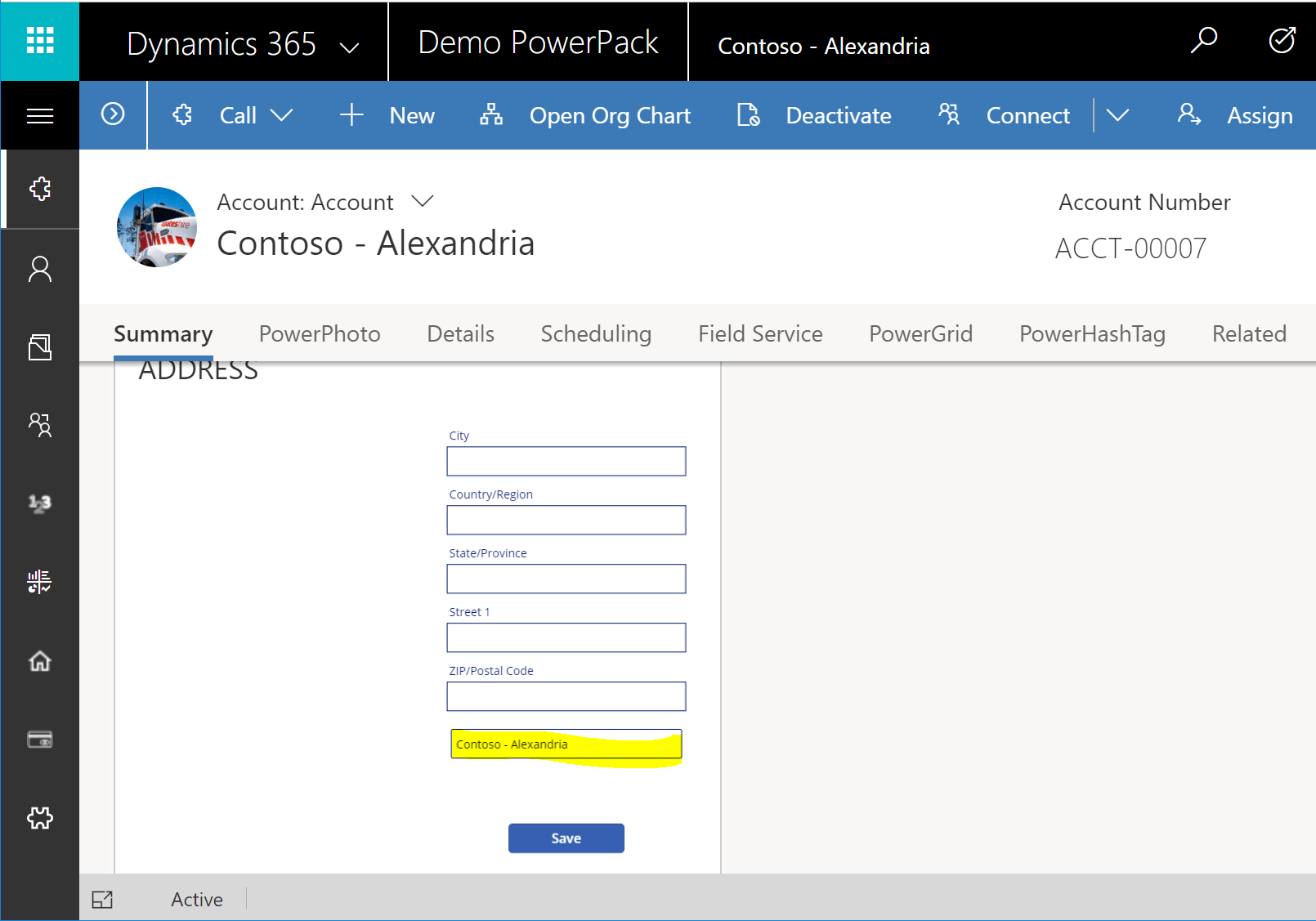
• My colleague created a new embedded Canvas app and I went to check it the model-driven app’s form. However, all I could see – just the error message.

    embeddedappaccessissue1

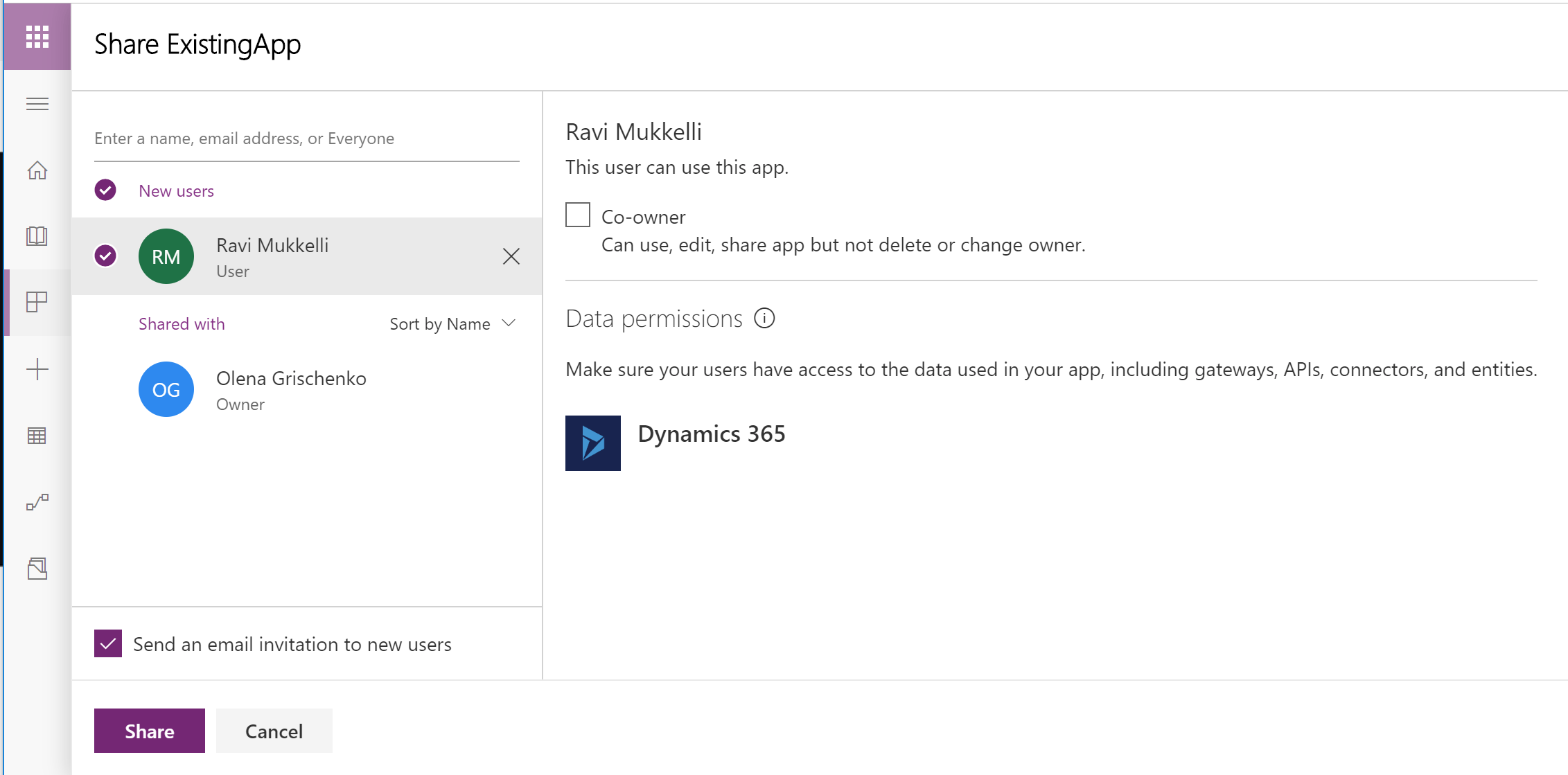
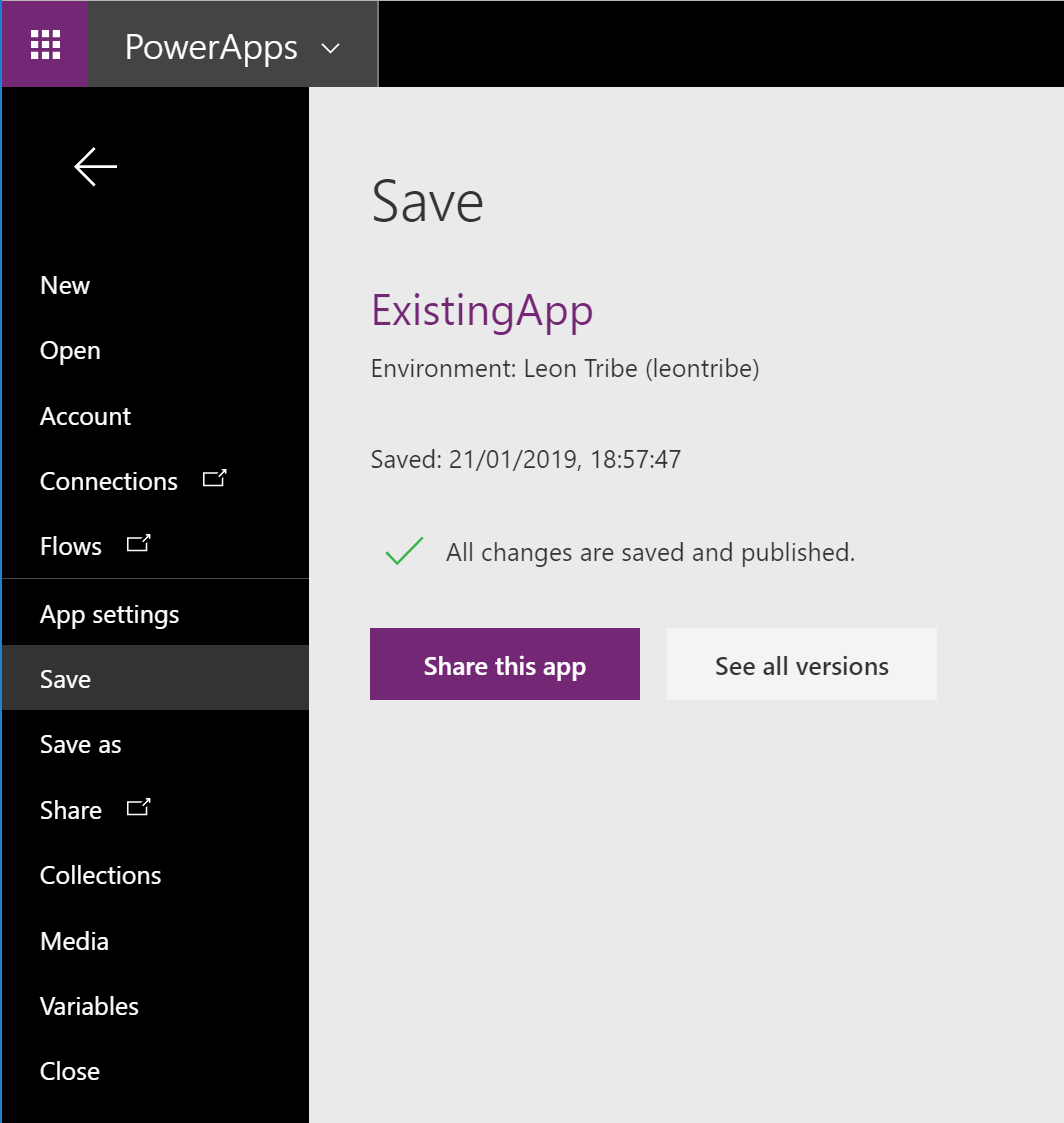
    As obvious as it could be: you need to share your app with users if you want them to use it in Dynamics.

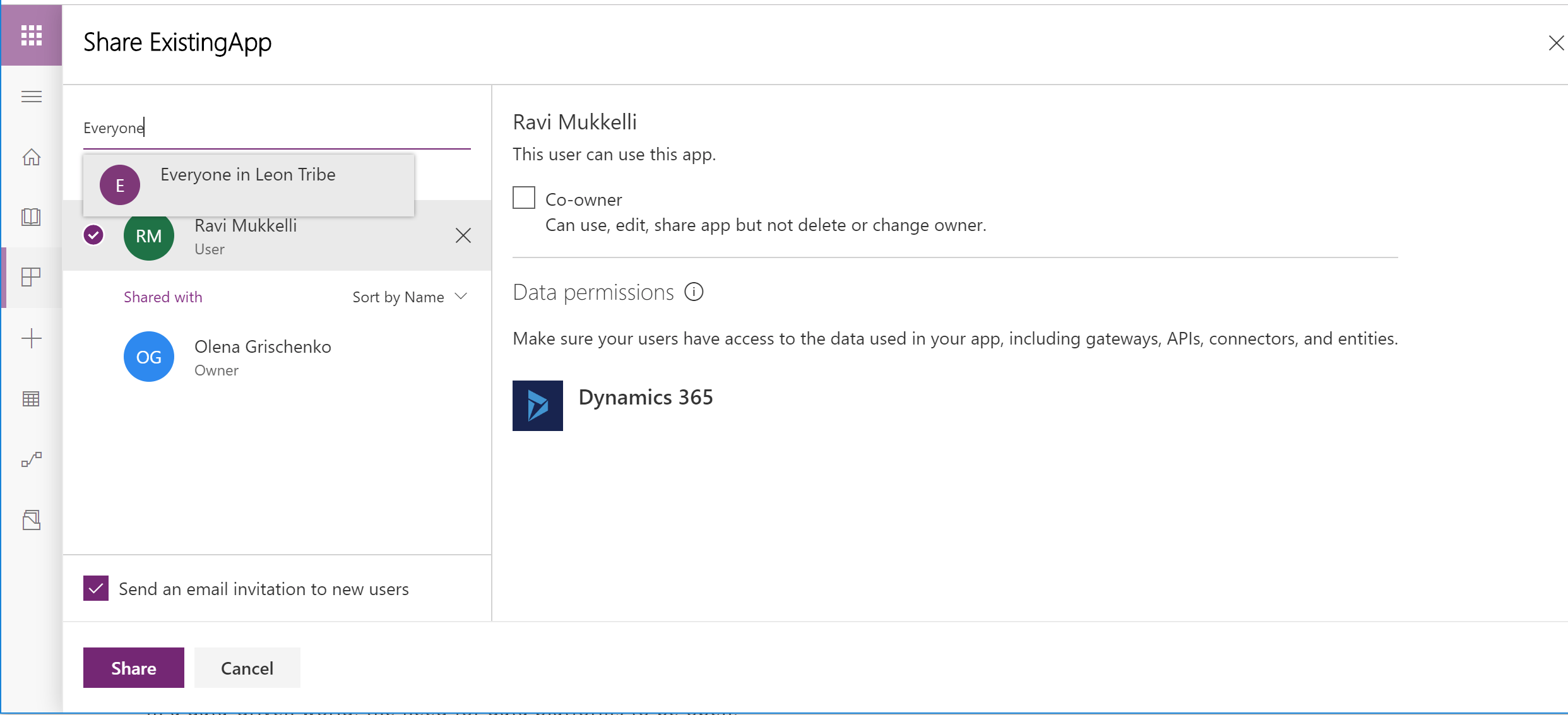
    So go to the PowerApps editor (https://web.powerapps.com/environments), select your app to share. Enter a name, email address or Everyone…

    embeddedappaccessissue2

    If you choose Everyone, you will have the opportunity to share the app with all users in your organisation.

    embeddedappaccessissue3

    Probably, in my case, this would be a good option.

    Also you could add Everyone and individual users with the separate permissions, like co-owners, users who can edit and also share your app.


  • Start with the article here 

    And here to understand the concept of embedded Canvas Apps

    Now… How do we embed an existing Canvas App? Do we have rebuild it from scratch following the steps described in the articles above? Thanks to Microsoft, not.

    1. Open the existing Canvas App in the editor.ce1
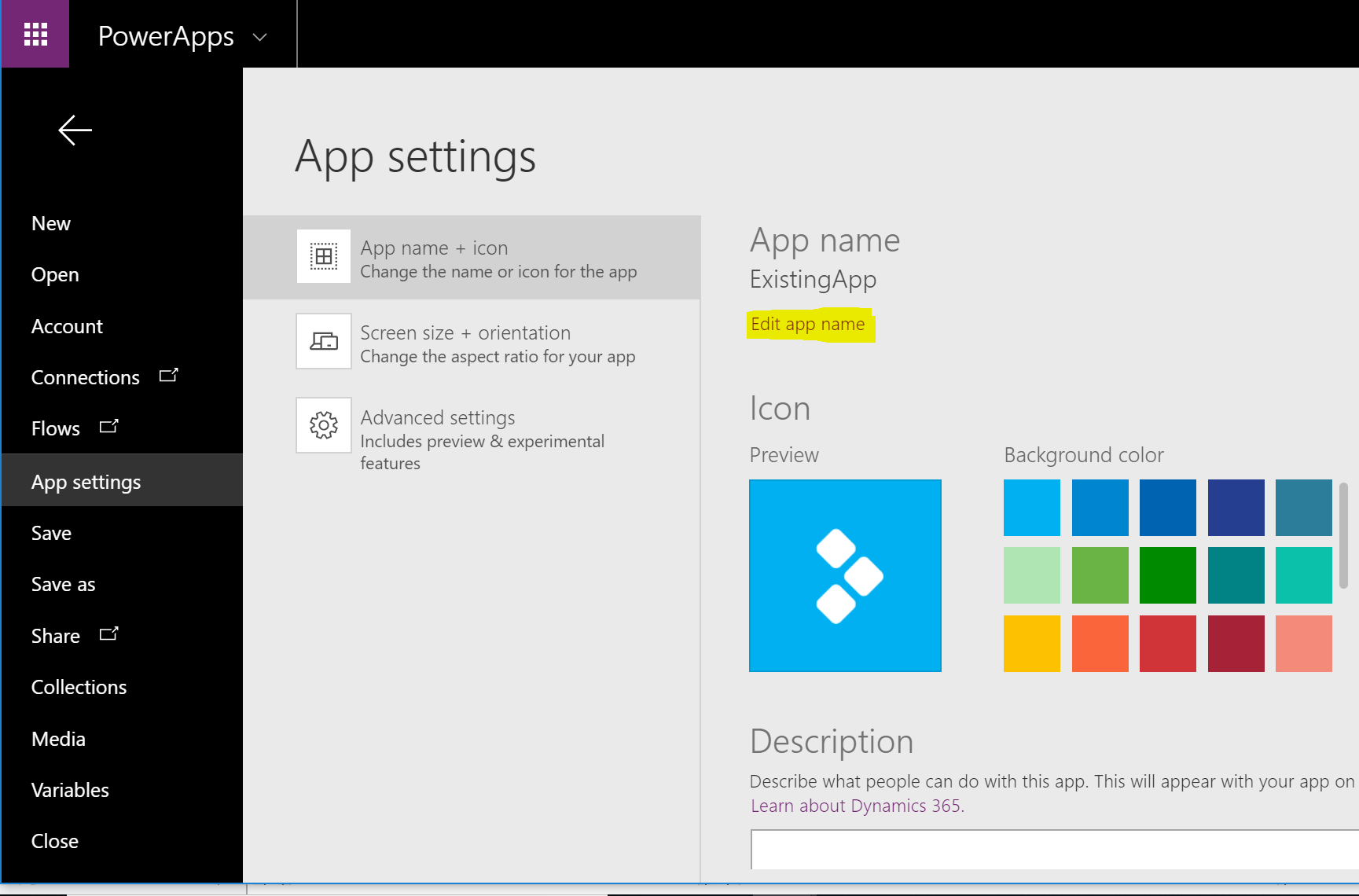
    2. Click App settings then Edit app name.ce2
    3. Copy App ID and store it for the future.ce3
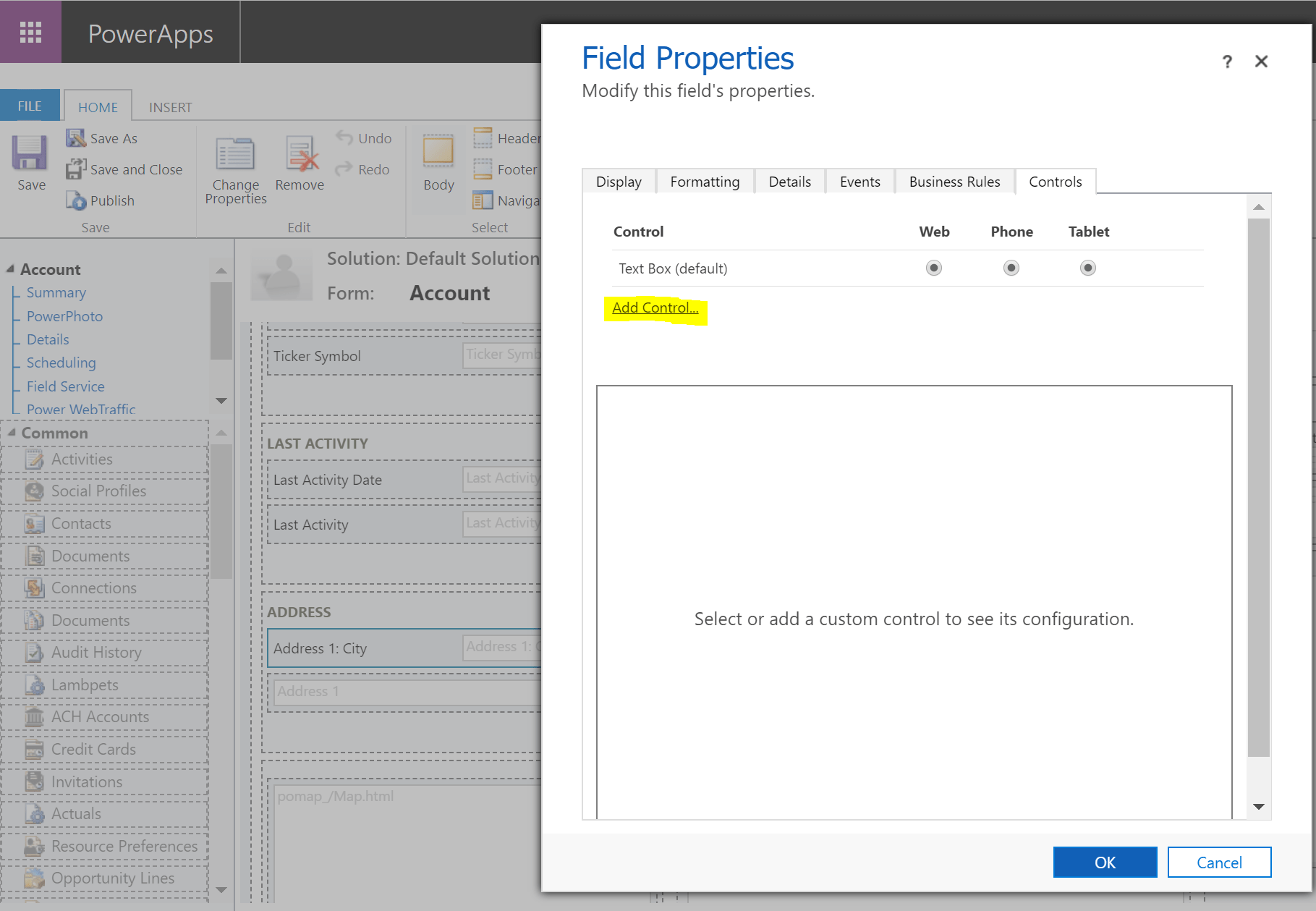
    4. Open Account form on a Dynamics 365 instance. For the text field on the form Field Properties -> Controls tab click Add Control.ce4
    5. From the list of controls select Canvas app. Click Add.ce5
    6. Click on the Edit icon to edit App ID.ce6
    7. Paste the existing Canvas App App ID here then click OK.ce7
    8. Click on the Customize button to open the editor.

    ce8

    9. You’ve got the context passed to the Canvas App now. ModelDrivenFormIntegration. Data contains the list of records, in our case – just one.

    ce9

    10. Still, we use First() to get the only record in the list and Name property to display on the form.

    ce10

    11. This is how it looks inside a model-driven app.

    ce11

    Now embedded.

    All credits goes to Ravi Mukkelli. Check his blog to learn more about some cool Dynamics 365 and PowerApps stuff.


  • The beginning is here: Multiple ways to implement a required field validation in PowerApps. Part 1.

    And this is where it’s getting weirder …

    3.  I just know you can do it this way. Don’t ask me why. Data source level validation.

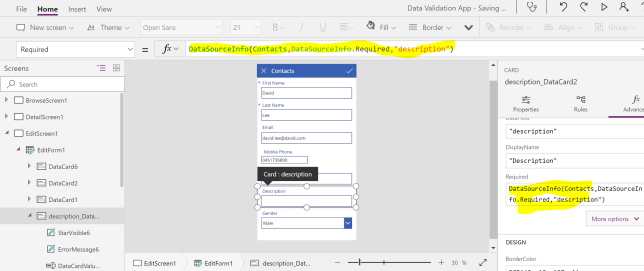
    Repeat all steps from 2 for the data source changes up to the Then Save Entity. This time I do it for the Description field. Go back to your app. On the Edit form for the Description card on the Advanced tab Unlock to change properties.

    v21

    For the Required property specify the following:

    DataSourceInfo(Contacts,DataSourceInfo.Required,”description”)
    v22v23

    4.   Custom required validation. App level validation.


    For the scenario where you have to mark a field required or not based on the selection of another field we will implement the custom required field validation:

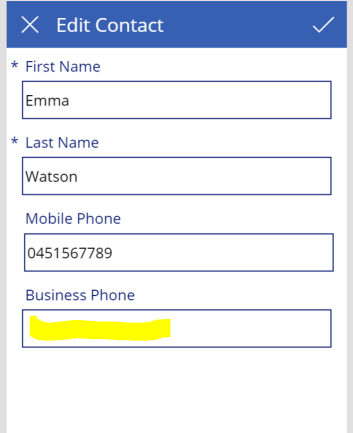
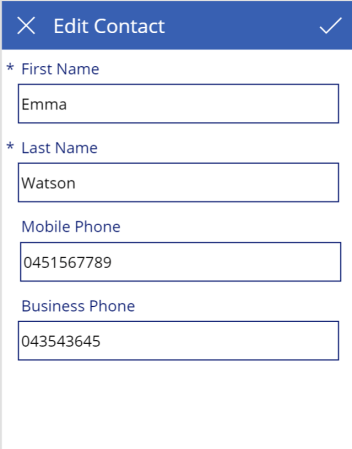
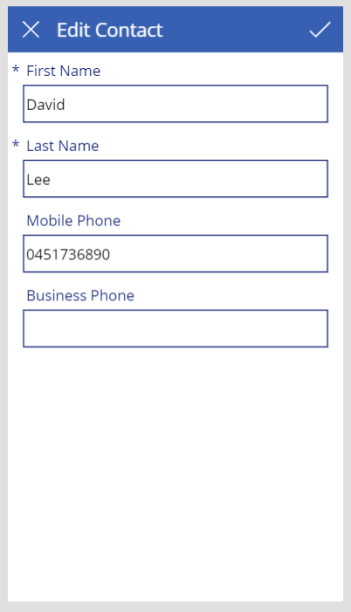
    In my case either Mobile or Business Phone field is required.
    v24

    Let’s use the context variable IsPhoneSpecified to store the flag if one or both phone fields are populated.

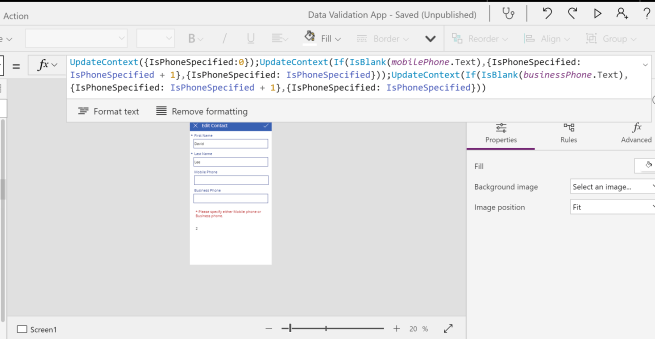
    I put the script OnVisible of the Screen1 control:

    UpdateContext({IsPhoneSpecified:0});UpdateContext(If(IsBlank(mobilePhone.Text),{IsPhoneSpecified: IsPhoneSpecified + 1},{IsPhoneSpecified: IsPhoneSpecified}));UpdateContext(If(IsBlank(businessPhone.Text),{IsPhoneSpecified: IsPhoneSpecified + 1},{IsPhoneSpecified: IsPhoneSpecified }))
    v25

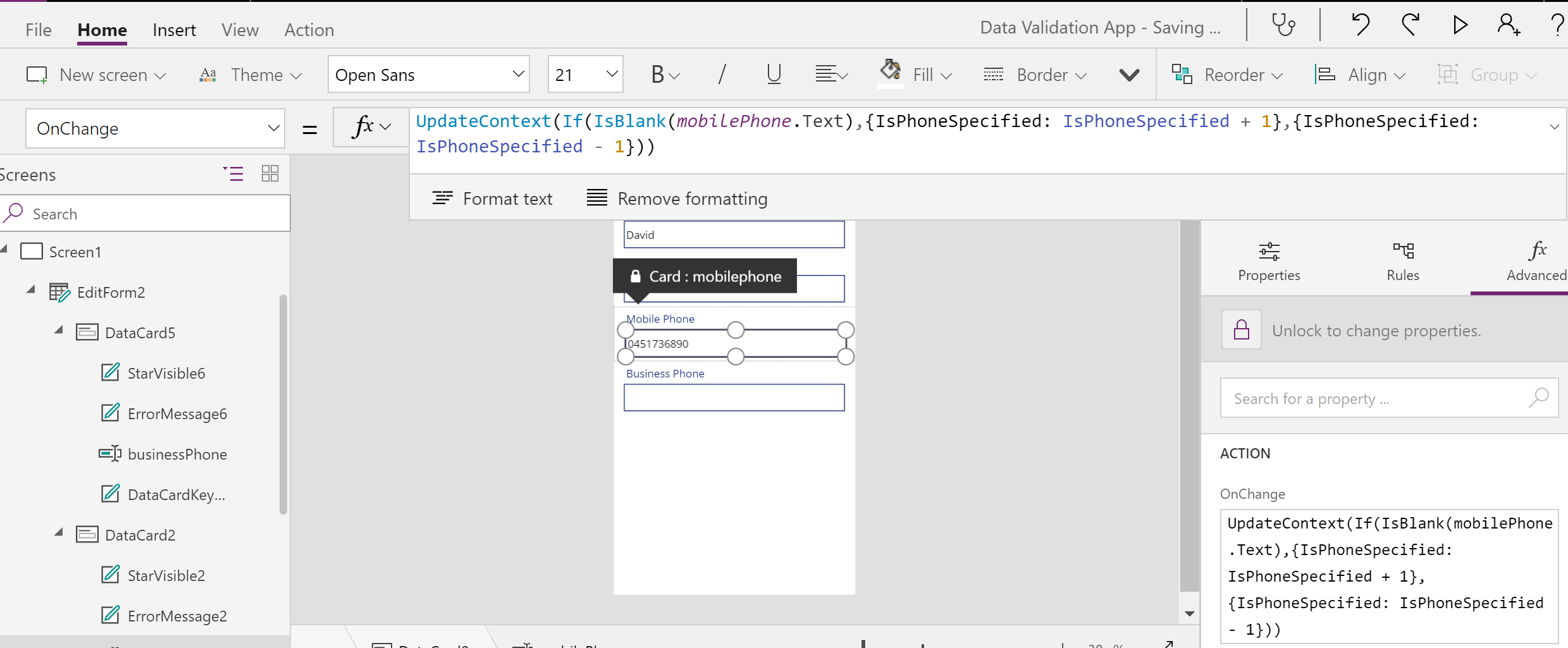
    For the mobilePhone control Advanced properties OnChange add the following:

    UpdateContext(If(IsBlank(mobilePhone.Text),{IsPhoneSpecified: IsPhoneSpecified + 1},{IsPhoneSpecified: IsPhoneSpecified – 1}))
    v26

    For the businessPhone control Advanced properties OnChange add the following:

    UpdateContext(If(IsBlank(businessPhone.Text),{IsPhoneSpecified: IsPhoneSpecified + 1},{IsPhoneSpecified: IsPhoneSpecified – 1}))

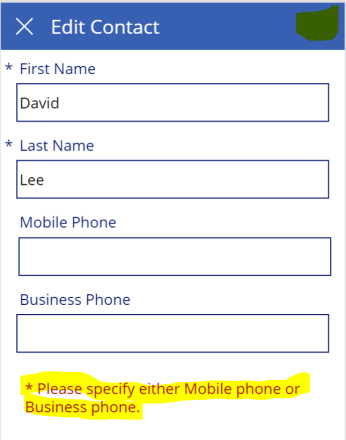
    Add a new error label to the form:
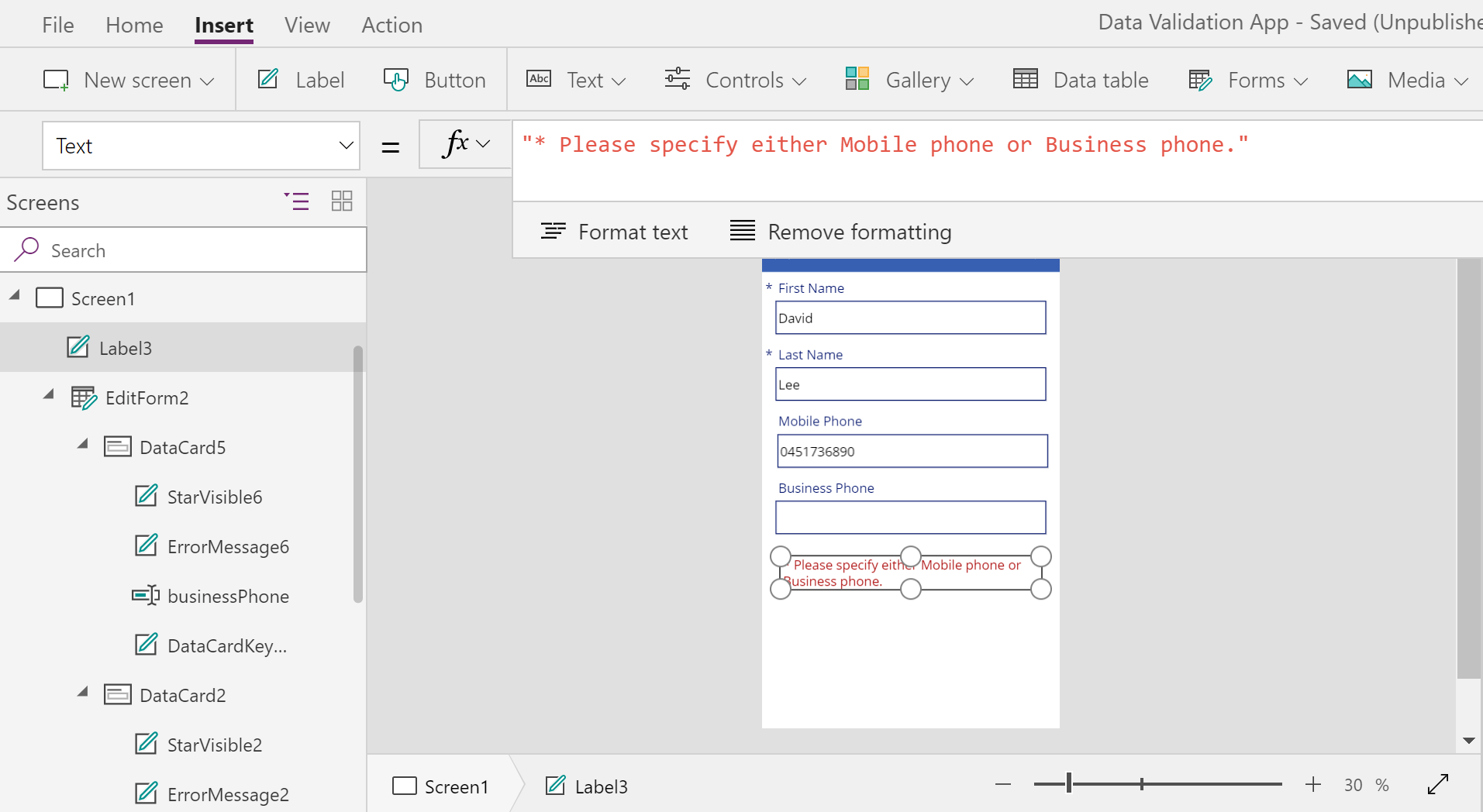
    v27

    Set Visibility of the error label to the expression below:
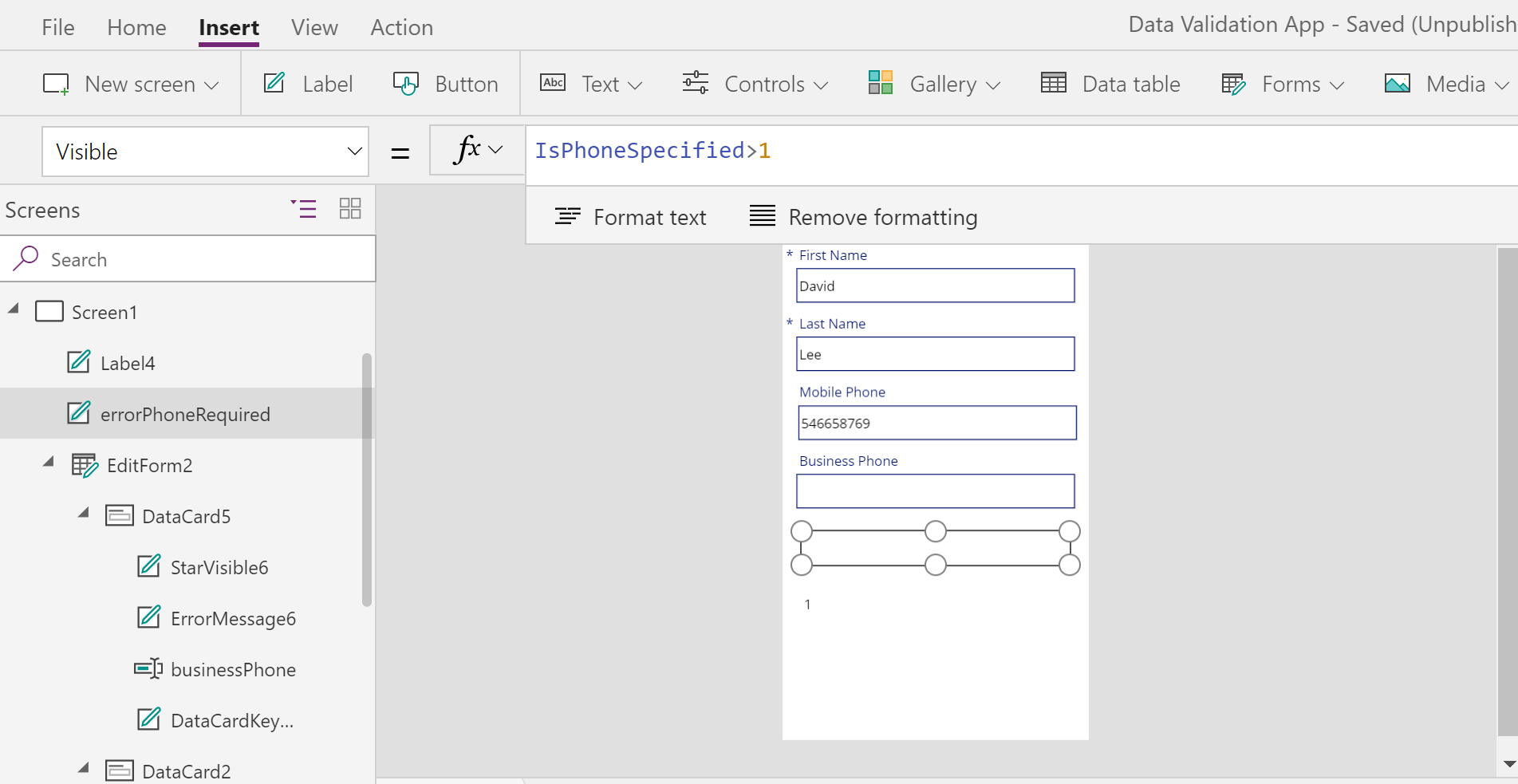
    v28

    This is how it works:

    v29v210v211

    Looking good! Unfortunately, it doesn’t stop a user from the actual form submission. So the last step to get it fully working will be to trigger the Submit button visibility based on the IsPhoneSpecified flag value:

    IsPhoneSpecified<=1
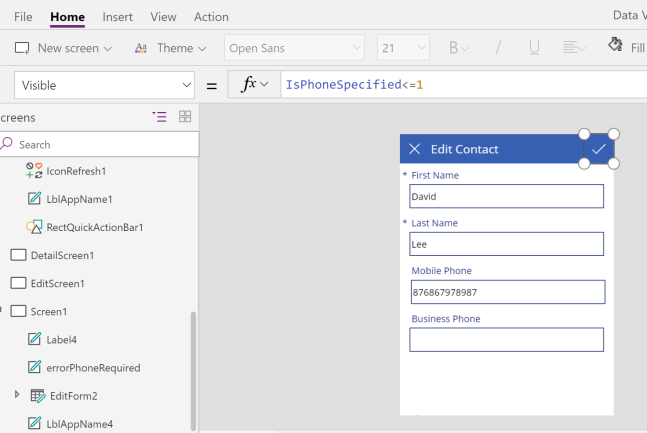
    v212v213v214

  • Implementing a required field validation is the way to force encourage a system user to enter the information which is critical for your business.

    There are some options below to support this in PowerApps:

    1.      Too Easy and too obvious. App level validation.

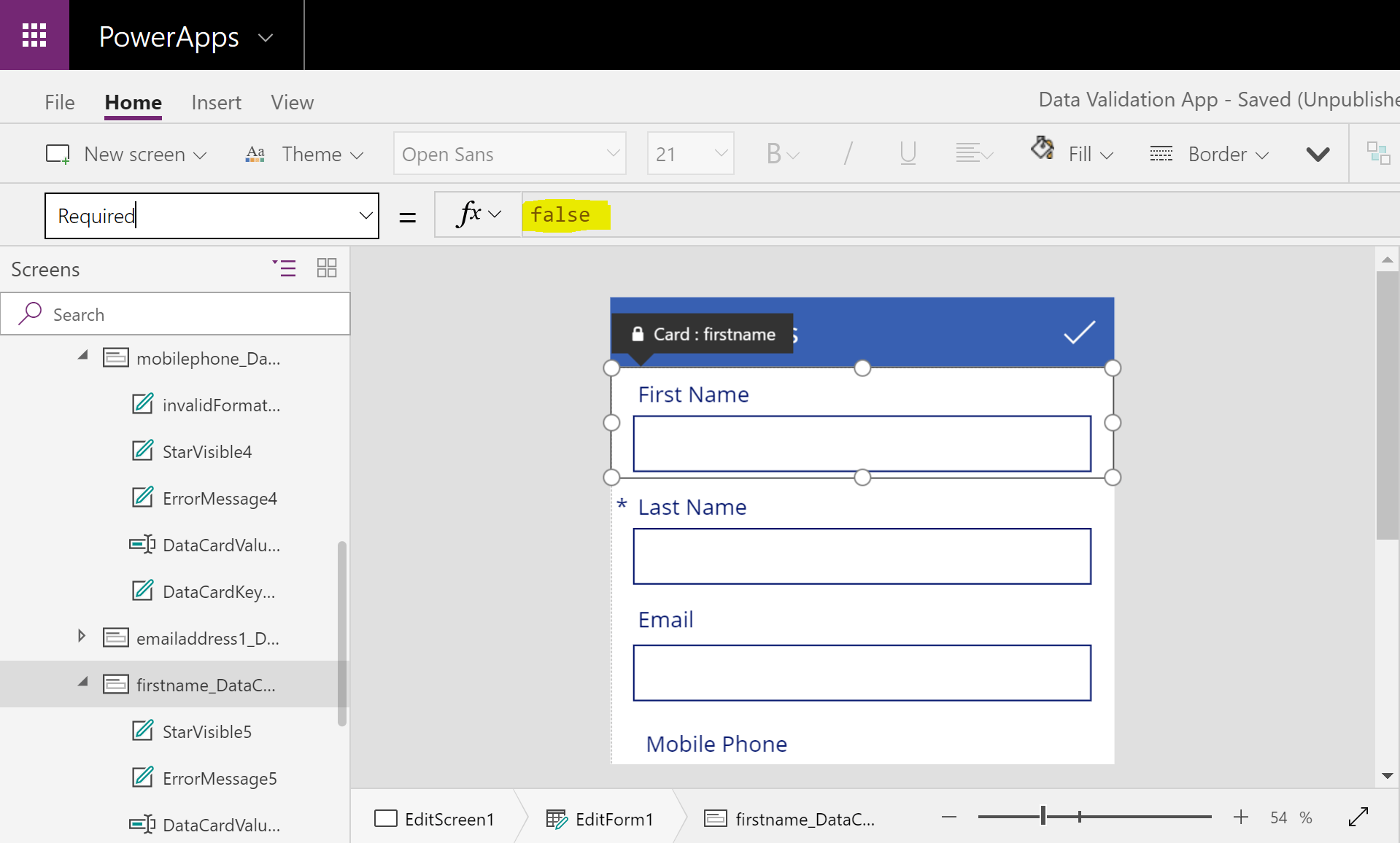
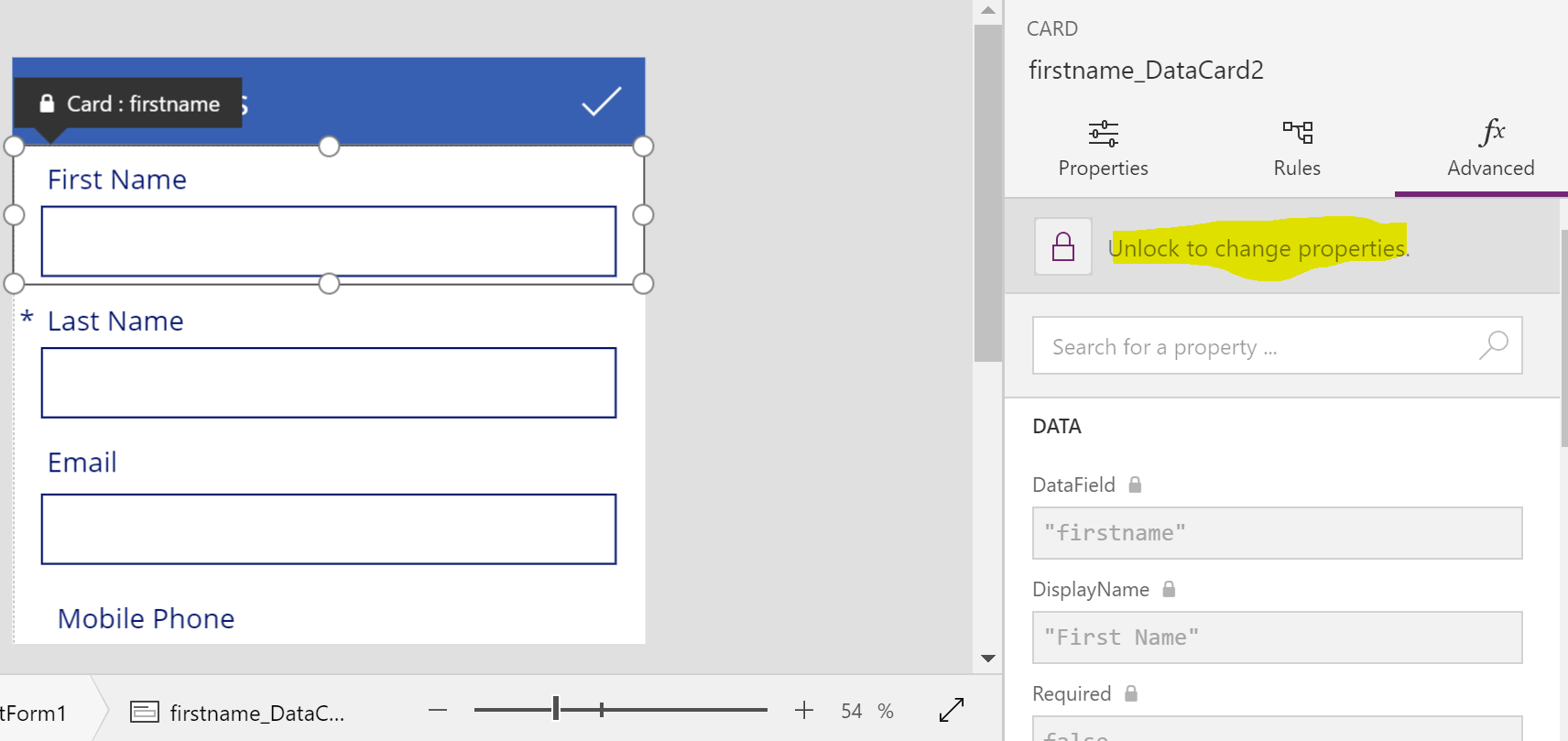
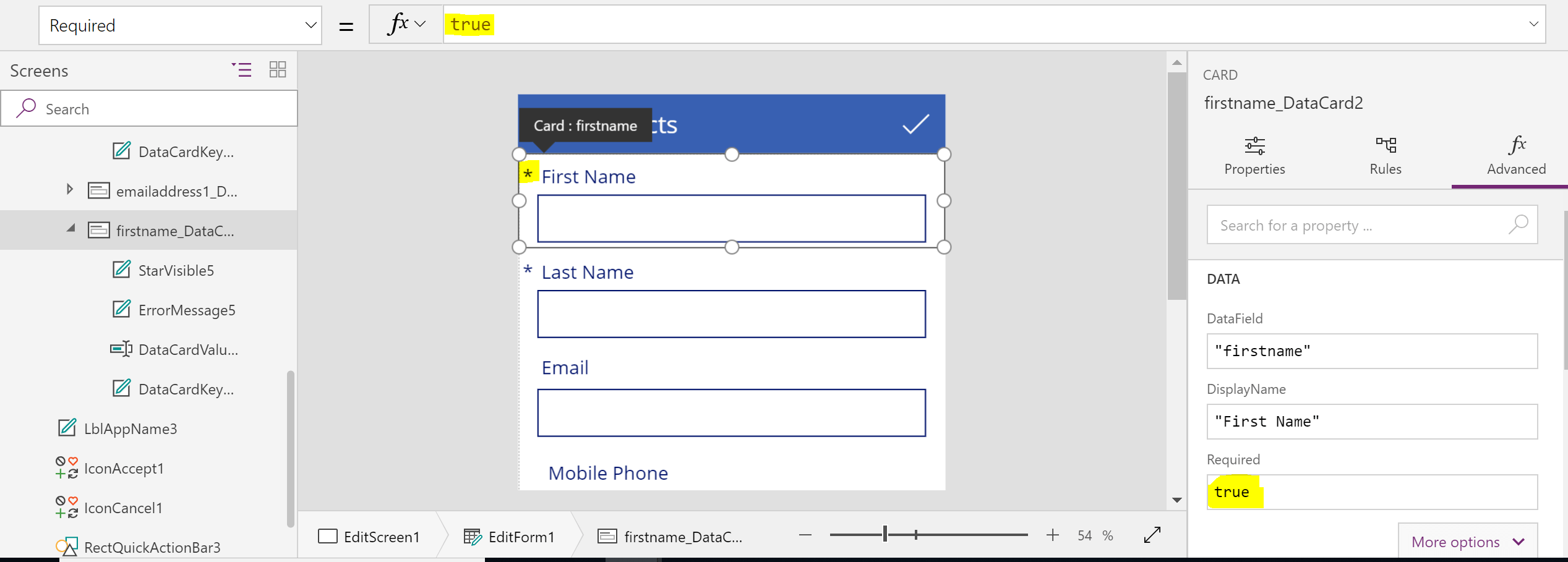
    It’s a Card property on the Edit form. Select the card you want to make required. Unlock the card. Change the property from “false” to “true”.

    v1

    v2v3v4

    It’s good because it’s easy. However, it only allows you to set it required for the particular app, let’s call it app level validation. Which is a valid scenario.

    If you need to set it for all apps working with your CDS data source, you have to do it differently.


    2.      The Required field in a CDS data source. Data source level validation.

    Let’s make a Job Title field mandatory/required on a data source level.

    v5

    From the top menu click on File then on the left-hand side click on Connections. Then select Data and Entities under Data.

    v6v7

    Pick up the entity you are working with in your app. In my case it’s a Contact entity.

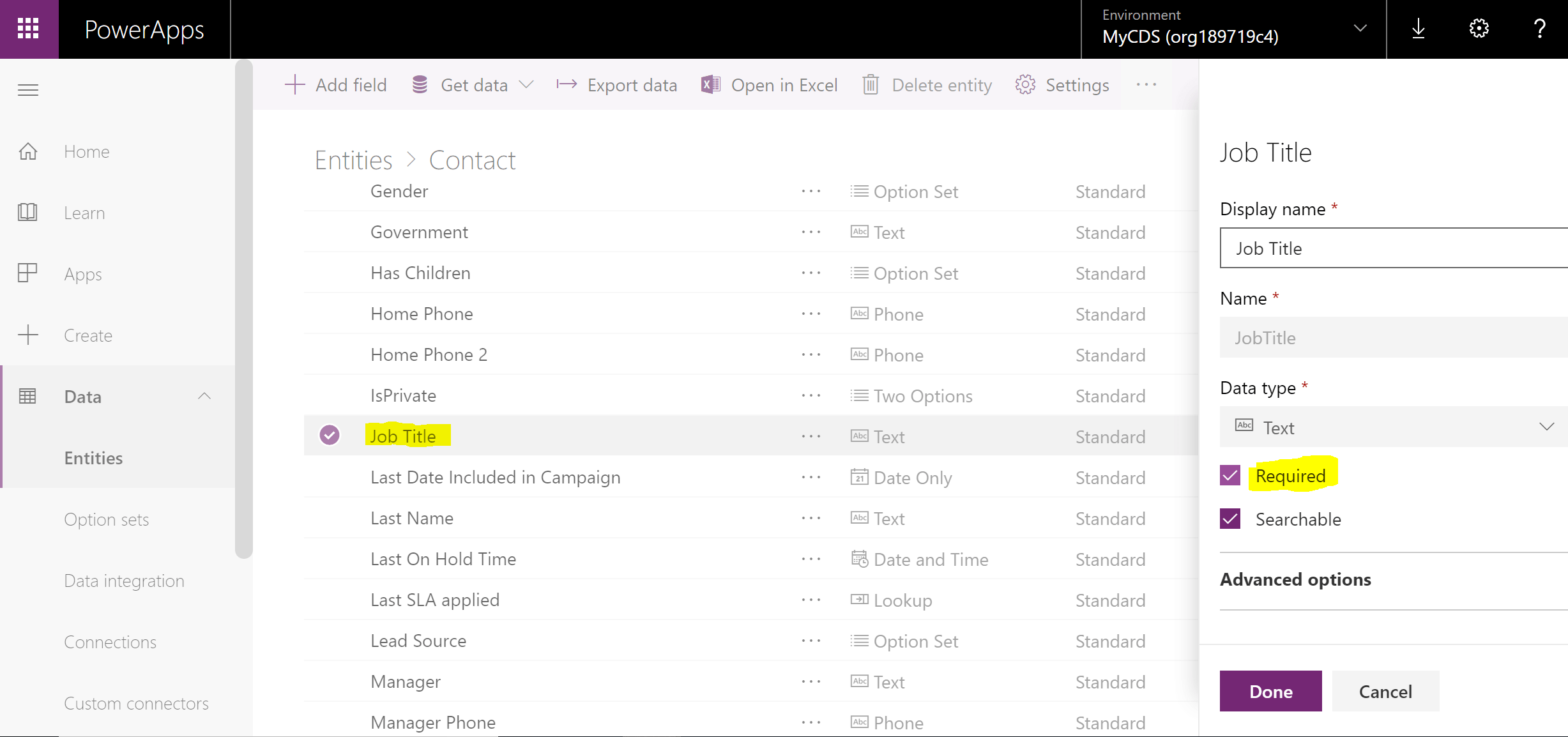
    Click on the Contact entity then on the Fields tab then select the Job Title field from the list of fields.

    v8

    Tick the Required property on the right panel. Done.

    Then Save Entity.

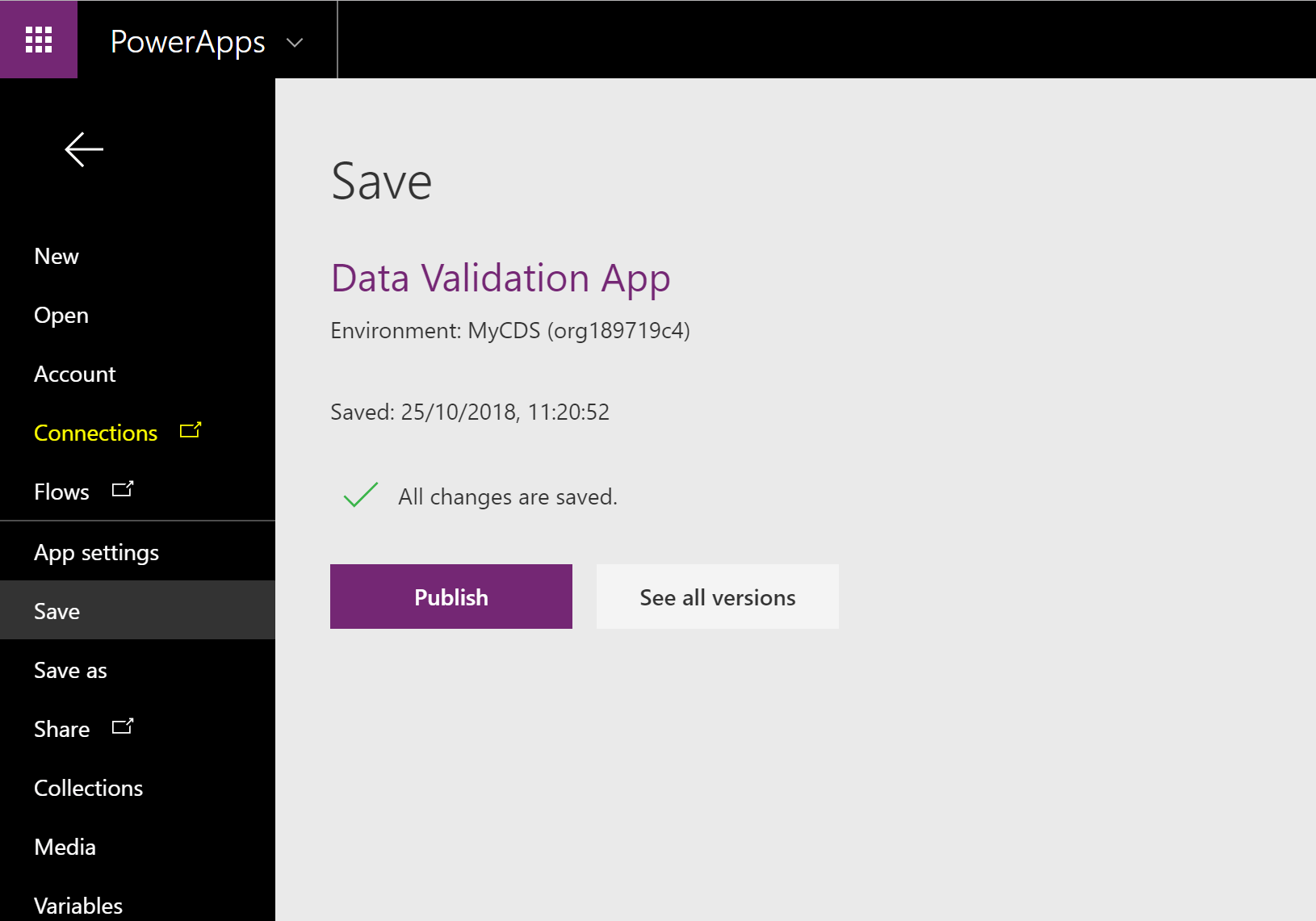
    Go back to the app. After refreshing the screen, I still didn’t see any magic happening, so I had to re-add the card to the form.

    v9

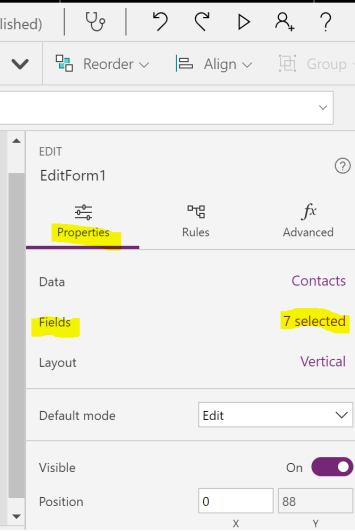
    On the right-side Properties tab click on the X selected link for Fields.

    Unselect the Job Title field then select it again.

    v10

    The result in Edit mode:

    v11

    The result after run:

    v12

    Note: The validation message doesn’t need to be that ugly. You can always style it your way.

    To be continued…

  • These are functions to find one or more records in a table.

      Matches by a formula or a single string * Multiple formulas accepted Returns multiple

    records or a single record

    Returns the subset of the original dataset or one value No record found Function to check if no record found
    Filter Formula Yes Multiple Subset Empty table IsEmpty
    Search String No Multiple Subset Empty table IsEmpty
    Lookup Formula No First Single One value Blank IsBlank

    *The formula is evaluated for each record of the table. Records that result in true are included in the result. Besides the normal formula operators, you can use the in and exactin operators for substring matches.

    Fields of the record currently being processed are available within the formula. You simply reference them by name as you would any other value. You can also reference control properties and other values from throughout your app.

    The Search function finds records in a table that contain a string in one of their columns. The string may occur anywhere within the column; for example, searching for “rob” or “bert” would find a match in a column that contains “Robert”. Searching is case-insensitive. Unlike Filter and LookUp, the Search function uses a single string to match instead of a formula.

    “When to use” examples

    Duplicate detection based on more than one column – Filter.

    Retrieve a subset of the dataset filtered by one or more than one column – Filter.

    Text search case-insensitive in multiple columns – Search.

    Link to tables via reference – Lookup.

    Delegation

    When possible, PowerApps will delegate filter and sort operations to the data source and page through the results on demand.

    Simple,

    no delegation: retrieves a subset of records, performs functions and operations on that subset of records.

    delegation: retrieves a subset of records, performs functions and operations on whole dataset, then retrieve a result subset.

    For example,

    Whole data set contains the record for Adam Smith.  The default subset for 500 records doesn’t contain the Adam Smith record. The function Search for “Adam” string will NOT retrieve the Adam Smith record if:

    • The data source doesn’t support delegation
    • The function/data source combination doesn’t support delegation.

    It will only search in the subset of records.

    Data sources vary on what functions and operators they support with delegation. If complete delegation of a formula isn’t possible, the authoring environment will flag the portion that can’t be delegated with a warning. When possible, consider changing the formula to avoid functions and operators that can’t be delegated. The delegation list details which data sources and operations can be delegated.