Skip to content

Olena's Dynamics Blog (post-AI)

Writing as a human

  • Home
  • About
  • Contact
  • Videos
  • YanaLiz Blog

recent posts

  • !Importan! This blog is now an archive
  • How to send email receipt from Stripe in Power Pages payments
  • D365 user queue: control which emails are synced. Default to No email messages.
  • Integrate eSignature with Power Pages
  • Power Pages: Upload large files – work in progress

about

#womenintech #mvp #businessapplications #dynamics365 #dynamics365developer #powerplatform #solutionsarchitect #businessapplications #netdveloper #azuredeveloper #lovewhatido #supportwomenintech #blogger #diversity #microsoftdeveloper
  • Twitter
  • Facebook
  • Instagram
  • CDS current connector: Filter expression. My Flow doesn’t trigger!”

    CDS current connector: Filter expression. My Flow doesn’t trigger!”

    May 29, 2020

    I thought you will love this one. It’s that type of “Help! My Flow hasn’t get triggered” thing which we all love.

    How to reproduce

    For the CDS entity which has some existing records then a new optionset field has got created. As a result some records may not have this field populated.

    If you use Filter expression “[your_attribute] ne [some_value]” it won’t trigger for records where this attribute is equal to null.

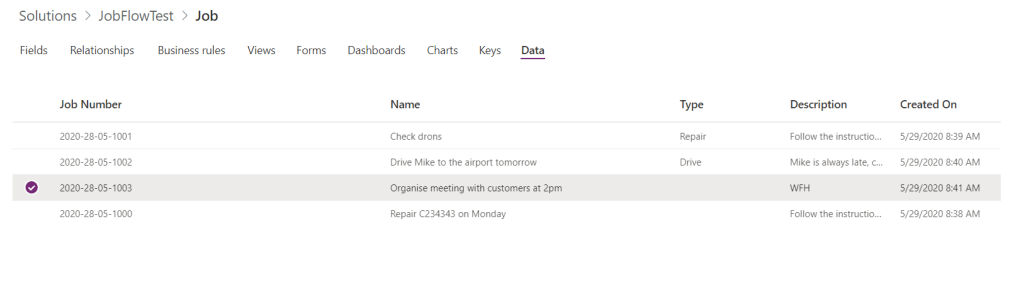
    For example, I’ve got a list of Jobs with the Type field populated for some records. Now I want to run a Flow which creates a Task every time I update a record if Job Type doesn’t equal to “Repair”

    List of Jobs with Type field populated for some records.

    This is my Flow trigger and I am trying to run my Flow only for records which aren’t “Repair” type.
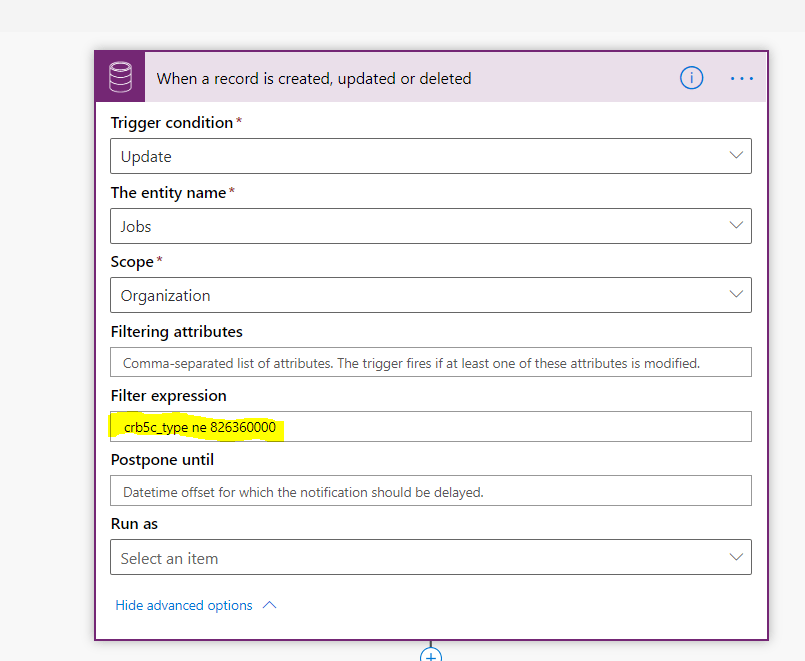
    CDS current environment Update trigger with Filter expression for Job Type not equal to Repair.
    The selected Job has Job Type equal to null.

    The selected job Type is not equal to “Repair” so expect Flow to trigger on the change of the record. But it doesn’t. My previous job run is for the Type populated.

    Successful update trigger for the record with the type Drive

    Let’s create a new record with the type not “Repair”.

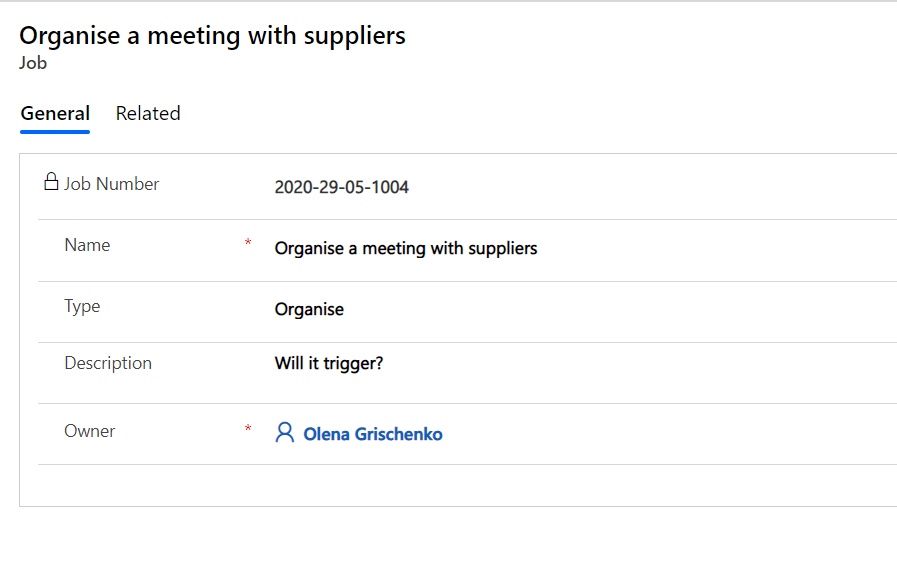
    Job with the type Organise

    Then we update the Description.

    Update the Description to trigger the Flow
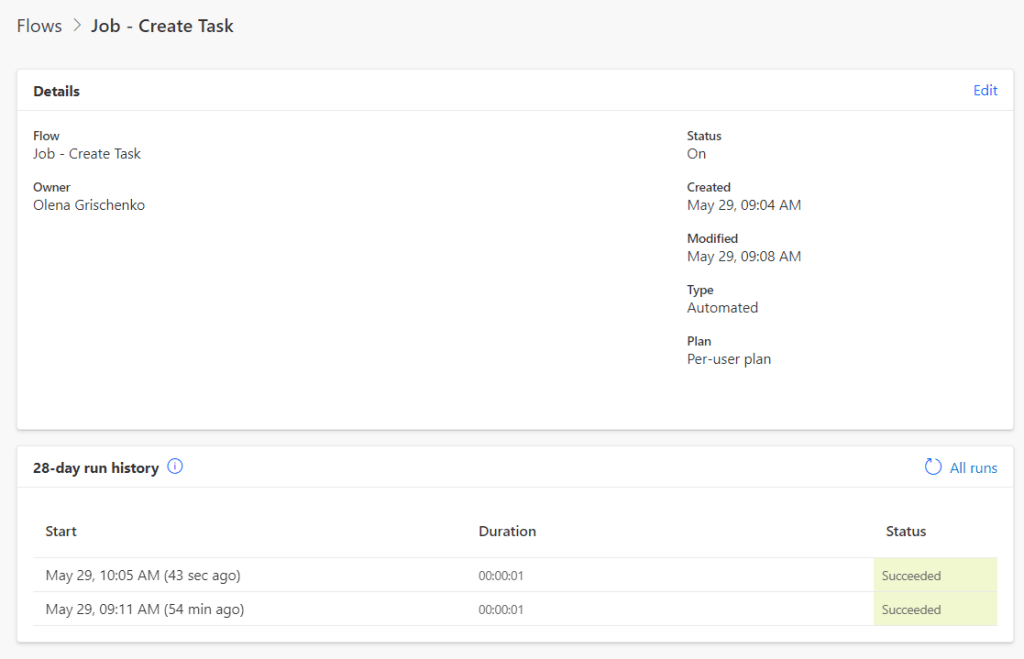
    Flow triggered for the record with the type not equal to null

    The Flow was successfully triggered.
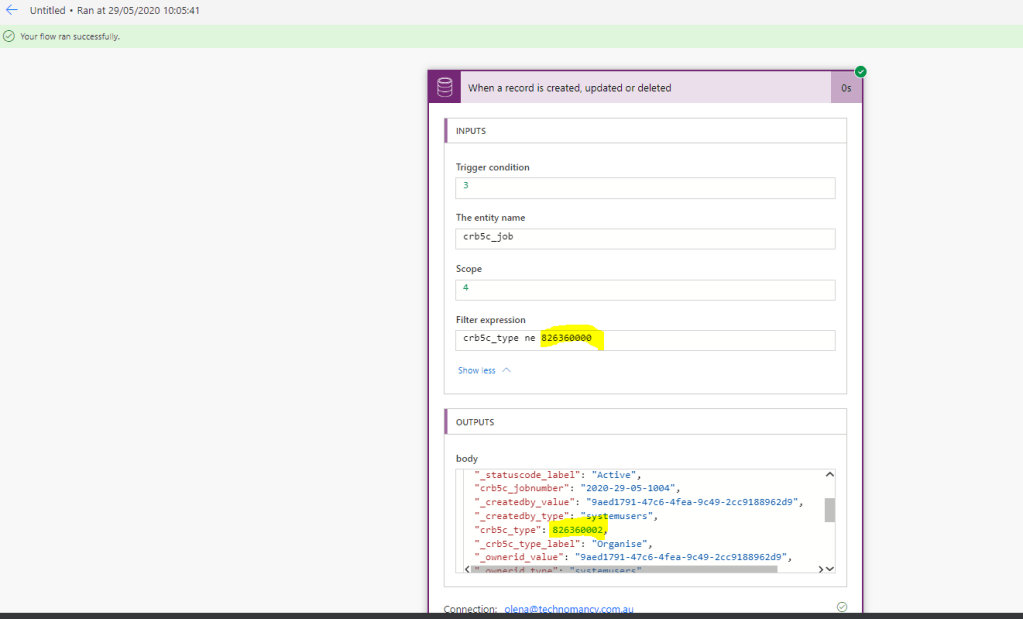
    For Organise Job Type Flow has triggered.

    What’s the cause

    I believe (I might be wrong though) that “null” means it’s not there. So you can’t really check if it matches the condition because it is physically not present in the dataset. If you look at JSON you for attribute which is “null” it’s not present in the JSON and marked as “null” it’s simply not there.

    What’s the solution

    There is none. Kidding. If you run for data with nulls and you want it to be triggered don’t use Filter expression. For this case you have to use a Condition action inside your Flow. It can be the first step in the Flow.

    Happy days!

    Share this:

    • Share on LinkedIn (Opens in new window) LinkedIn
    • Email a link to a friend (Opens in new window) Email
    • Share on X (Opens in new window) X
    • Share on Facebook (Opens in new window) Facebook
    • Share on Telegram (Opens in new window) Telegram
    Like Loading…
  • CDS current environment connector : “The following filtering attributes are not valid:…”

    May 20, 2020

    Life is pain…

    “The following filtering attributes are not valid:…”

    {  “error”: {    “code”: “0x80040203”,    “message”: “The following filtering attributes are not valid:  lastname”  }}

    Fix the trigger …error

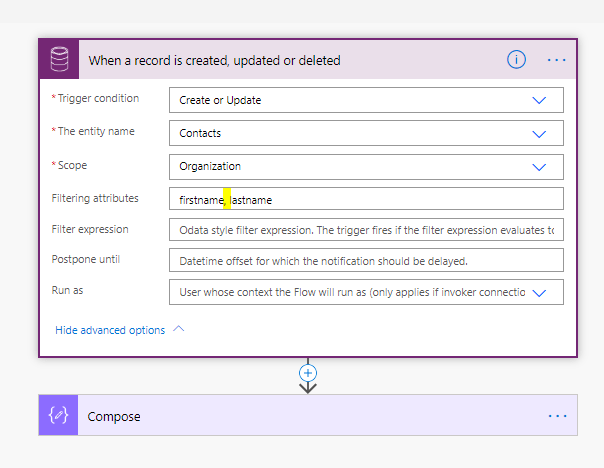
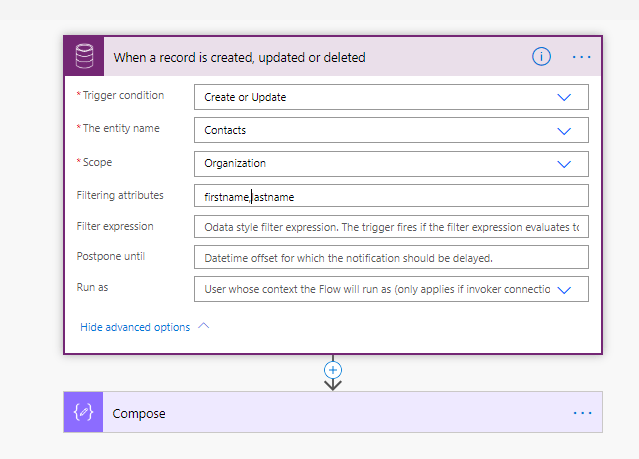
    Remove the white space between the comma and the next attribute!

    A white space between filtering attributes causing the error.
    No white space between filtering attributes

    It is simple… always… after 🙂

    Share this:

    • Share on LinkedIn (Opens in new window) LinkedIn
    • Email a link to a friend (Opens in new window) Email
    • Share on X (Opens in new window) X
    • Share on Facebook (Opens in new window) Facebook
    • Share on Telegram (Opens in new window) Telegram
    Like Loading…
  • Pass “reference” data from a parent Flow to a child Flow

    Pass “reference” data from a parent Flow to a child Flow

    May 18, 2020

    If you ever wonder how to do this is the exact time to figure it out together.

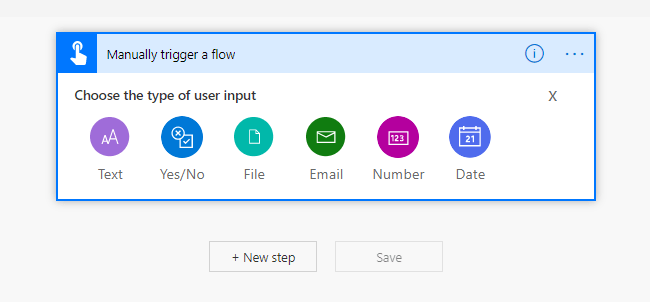
    These are types of user inputs you can pass to a child flow:

    Child Flow user input types: Text, Yes/No, File, Number, Date.

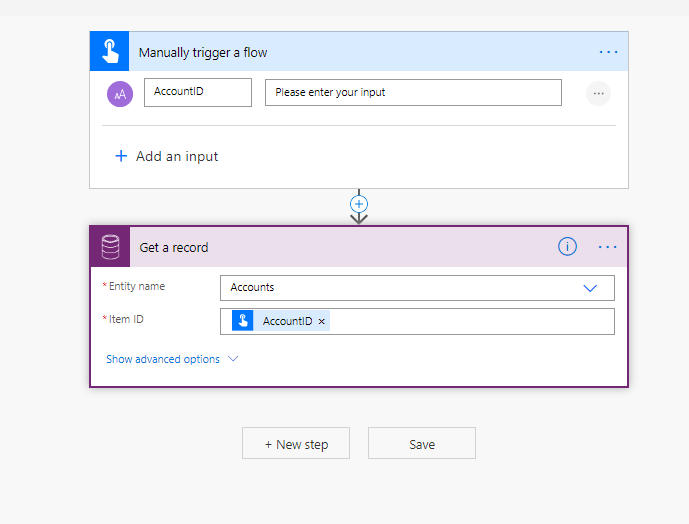
    What I was doing previously is passing a record ID as a Text input parameter then I was querying data using this ID. Like this:

    Query record in a child Flow to workaround a pass parameter limitation

    But if you query data in a parent Flow already or if you want to pass data from a trigger context …

    Let’s say I found a much better way. It has got one tiny disadvantage which I will flag later. But in general, it’s a valid option.

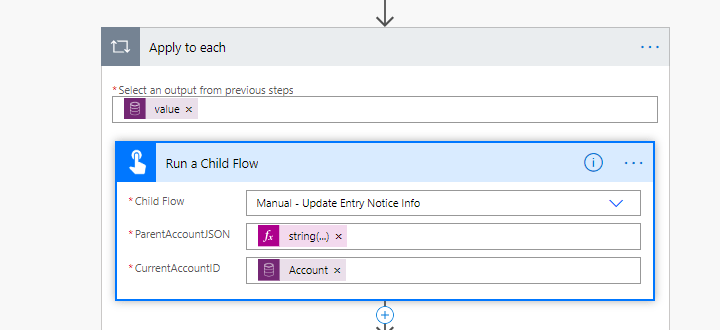
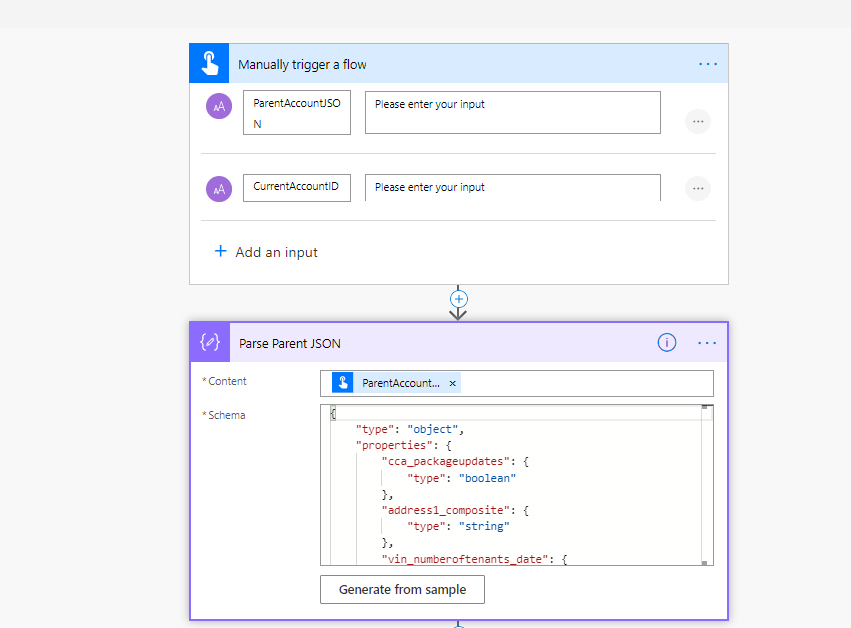
    I would like to pass a trigger context from the parent Flow to a child. I will pas it as Text but will JSON.

    Calling from the parent Flow:

    Pass parameters into a child Flow

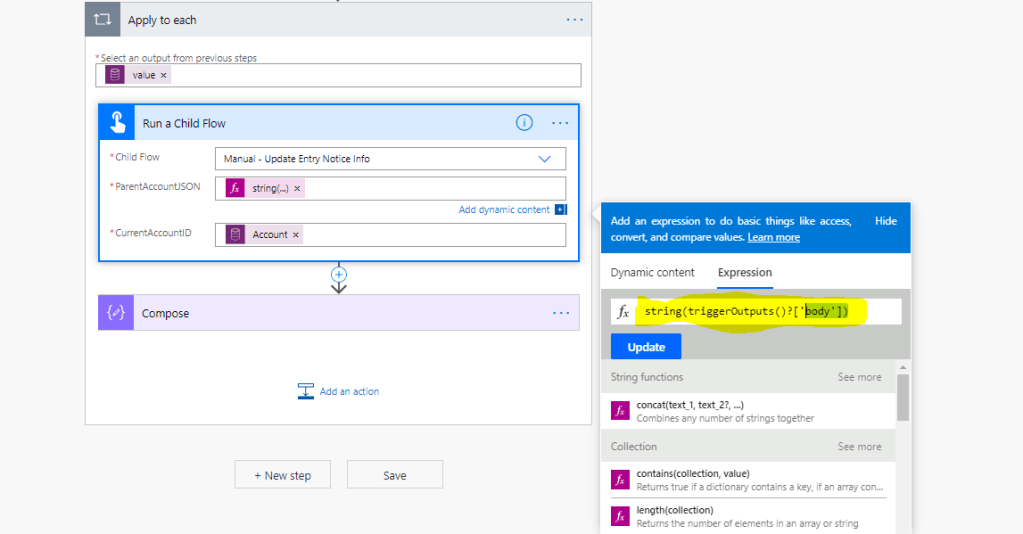
    Pass JSON to a child Flow

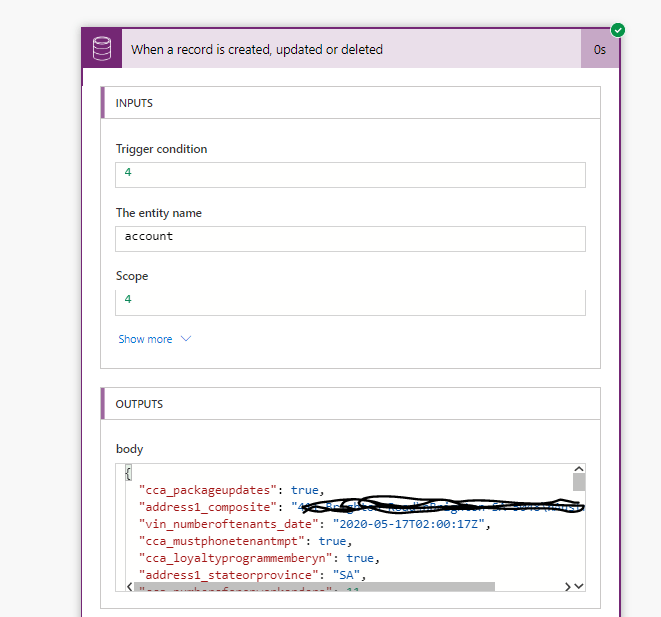
    Because in the trigger output we’ve got the context in JSON format:

    Trigger Output Body JSON

    Then in the child Flow we add Parse JSON action and copy OUTPUTS body JSON from the parent Flow to the Generate from sample:

    Parse JSON action

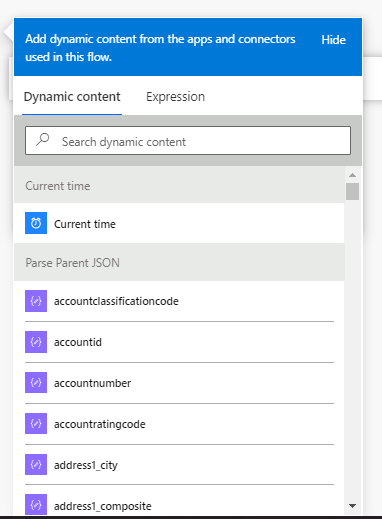
    Now you’ve got properties from your parent Flow available in the child Flow:

    Parse Parent JSON output

    As I promised the disadvantage. As you can see it on the screen it only gives you attribute names not proper display names. But if you with it then you can use this approach to pass more data.

    Simple!

    Share this:

    • Share on LinkedIn (Opens in new window) LinkedIn
    • Email a link to a friend (Opens in new window) Email
    • Share on X (Opens in new window) X
    • Share on Facebook (Opens in new window) Facebook
    • Share on Telegram (Opens in new window) Telegram
    Like Loading…
  • Populating Word template with the CDS image field content via Flow (Power Automate)

    Populating Word template with the CDS image field content via Flow (Power Automate)

    May 12, 2020

    This is a great video which helped me on a way: https://www.youtube.com/watch?v=-1jsBllmr-w

    However, in this video it takes image from OneDrive but I want to populate it from CDS image field.

    1. Add image control to a Word template. Watch video I referred above showing how to add controls step by step then come back for the image adding part.
    Image control inside Word template.

    2. This is my image store in CDS:

    CDS image displayed on a Job form.

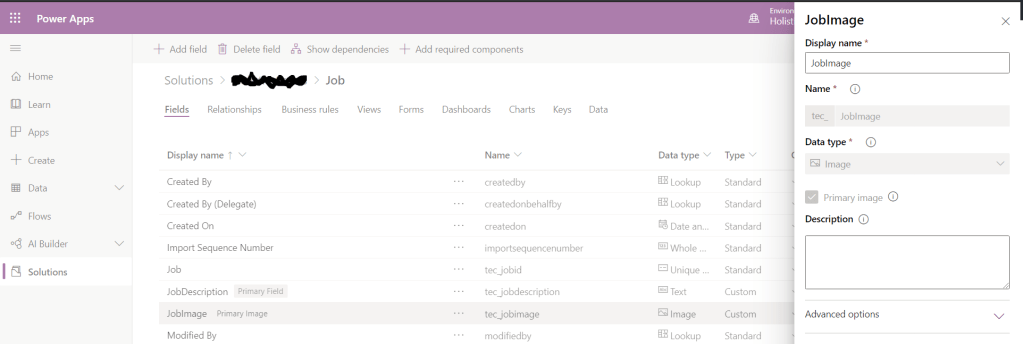
    3. And a CDS field set up.

    CDS image field setup.

    4. And now Flow:

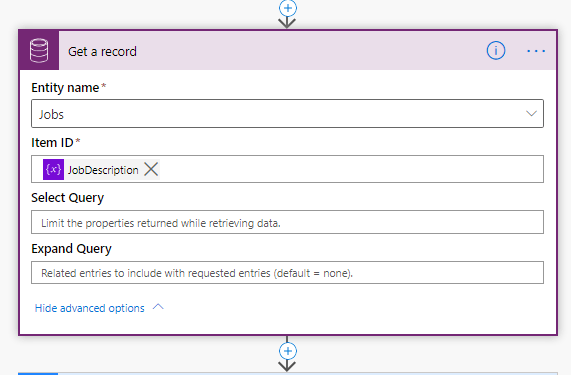
    Get record CDS connector action to retrieve the record with image.
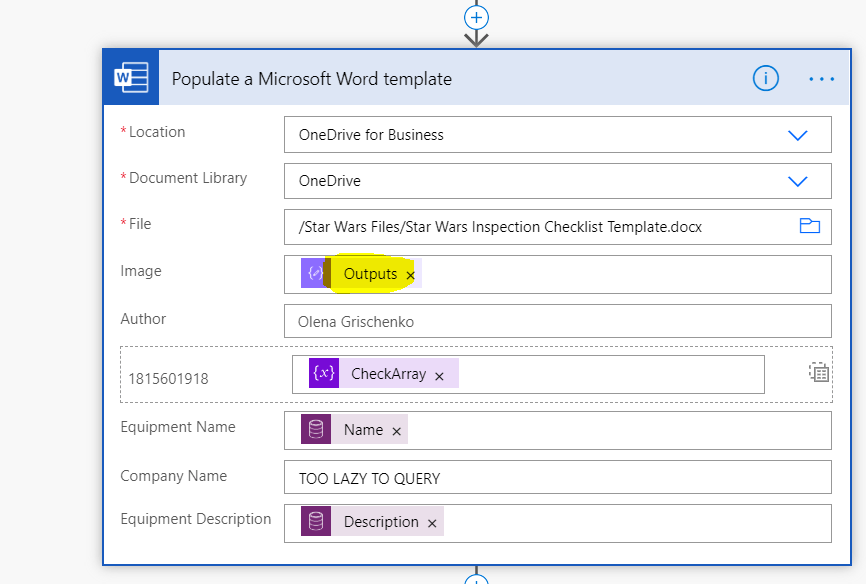
    Populate Word template action with the image control placeholder and compose output content.

    Here JobDescription and JobImage are fields of a Job entity.

    5. A bit of actions outputs to see how image is stored:

    Get record CDS connector action
    Image string in the output for get record

    The format is: application/octet-stream.

    According to docs(https://docs.microsoft.com/en-nz/connectors/wordonlinebusiness/#populate-a-microsoft-word-template):

    Guide for using Images in the Word Online connector.

    1. Add an Image content controller in your template. Don’t delete the placeholder image. You can re-size and re-position it.
    2. Add a title property to the image content controller so that you can easily identify it in the Power Automate designer.
    3. When the image field shows up in the designer, add file contents of a JPG or PNG image as the value. The value should look like this: { “$content-type”: “image/png”, “$content”: “iVBORw0KG…i/DhQmCC” } where the content is the base64 encoded image.

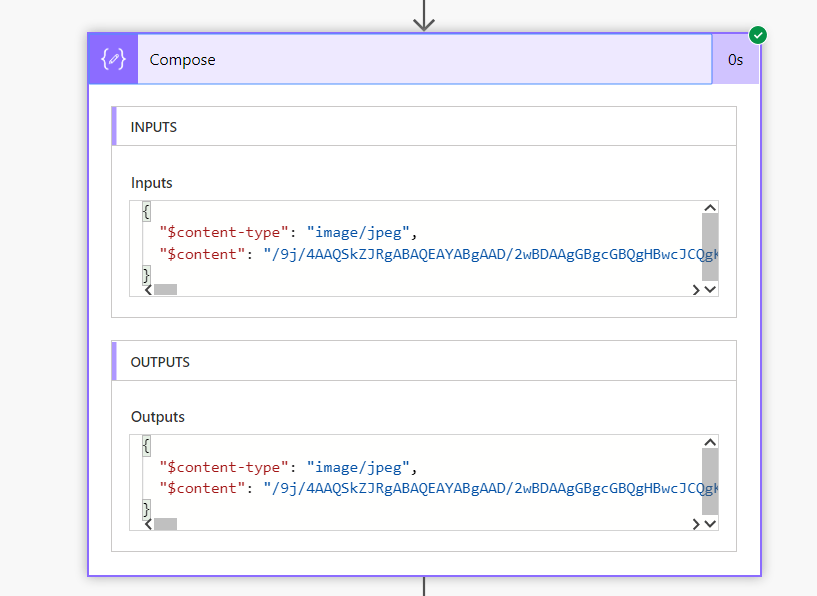
    6. That’s why we use Compose to construct the required JSON:

    JSON composed with the dynamic image field

    7. And the result in the generated document as expected:

    Image generated from CDS in the document template populated

    Hope it helps!

    Update: the version I described retrieves a thumbnail image. Microsoft released the CDS action since then Get file or image. https://docs.microsoft.com/en-us/connectors/commondataserviceforapps/#get-file-or-image-content?WT.mc_id=BA-MVP-5003463

    This action retrieves the original image (if you choose to store one) from Azure BLOB. Then you need to apply base64(…) function and compose the JSON as per screenshot below:

    Feeding the Output of the Compose to your Populate Word template action

    If you are interested in more doc generation info watch my video here:

    Share this:

    • Share on LinkedIn (Opens in new window) LinkedIn
    • Email a link to a friend (Opens in new window) Email
    • Share on X (Opens in new window) X
    • Share on Facebook (Opens in new window) Facebook
    • Share on Telegram (Opens in new window) Telegram
    Like Loading…
  • CDS current environment connector: Filtering attributes for the record created

    May 11, 2020

    Let’s say I want trigger some logic when the particular field has been modified on a record.

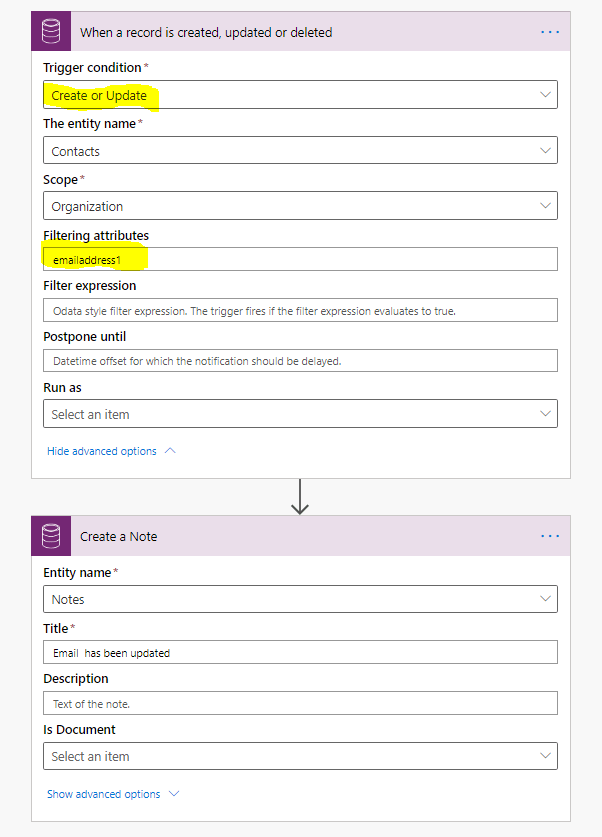
    In this example, I modify a contact Email field and create a Note when it’s been modified.

    I picked up a trigger for Create or Update because you can enter Email for a new record or you can just update.

    It’s obvious if you’ve ever created any plug-in in your previous life that Filtering attributes is something which is only applicable to Update.

    So even when you create a new record without populating Email this Flow will trigger still.

    So how do you know if record was created without Email or Email was modified to set to null? If you check the condition for Email eq null it will be true for both cases.

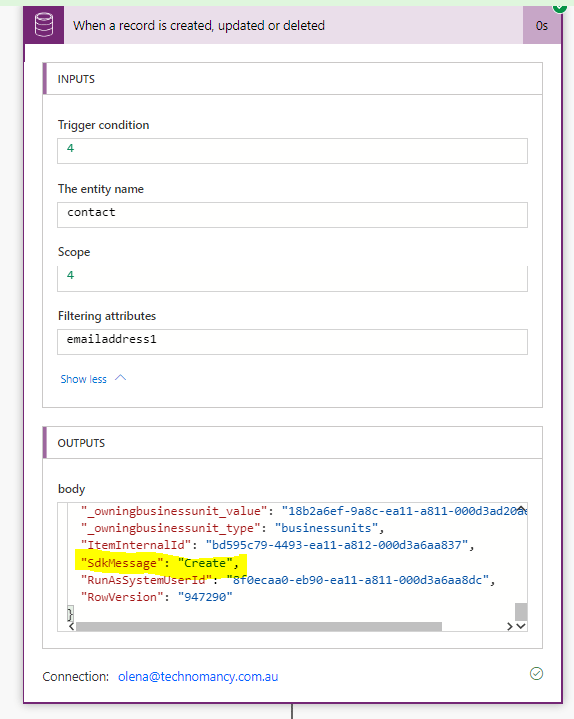
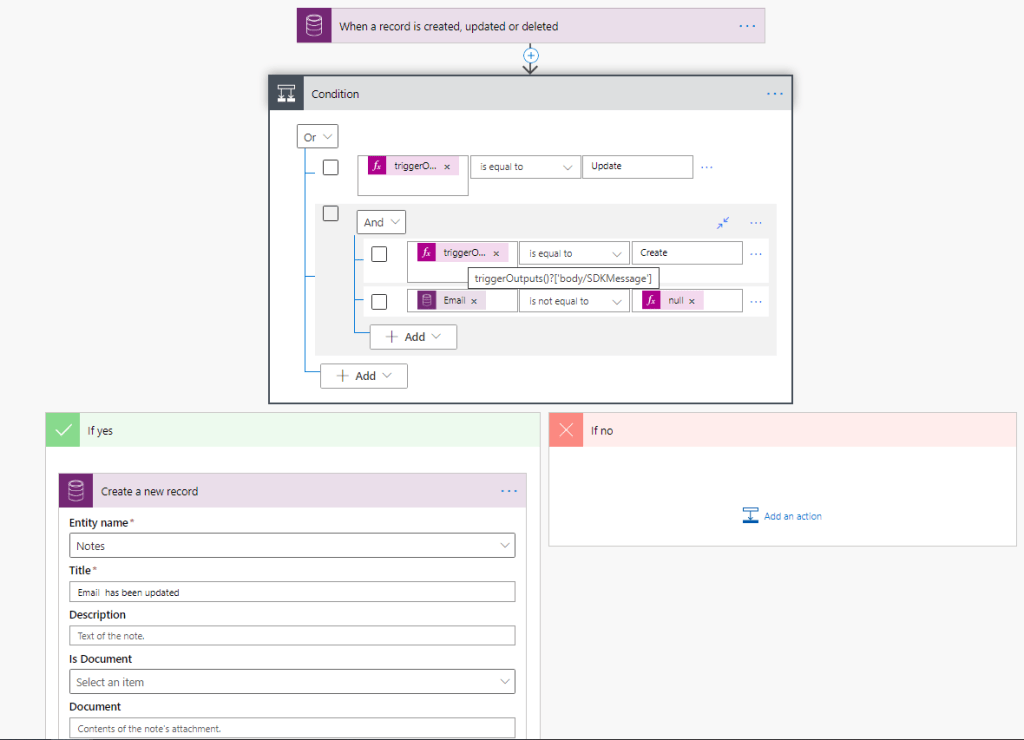
    Luckily, we’ve got SDKMessage property on the trigger we we can check to make sure we understand what exactly is going on.

    The condition below works for the Email populated on Create or just for Update when Email change is triggered via the Filtering attributes

    Share this:

    • Share on LinkedIn (Opens in new window) LinkedIn
    • Email a link to a friend (Opens in new window) Email
    • Share on X (Opens in new window) X
    • Share on Facebook (Opens in new window) Facebook
    • Share on Telegram (Opens in new window) Telegram
    Like Loading…
Previous Page Next Page

Create a website or blog at WordPress.com


Loading Comments...
 

    • Subscribe Subscribed
      • Olena's Dynamics Blog (post-AI)
      • Join 60 other subscribers
      • Already have a WordPress.com account? Log in now.
      • Olena's Dynamics Blog (post-AI)
      • Subscribe Subscribed
      • Sign up
      • Log in
      • Report this content
      • View site in Reader
      • Manage subscriptions
      • Collapse this bar
    %d