Skip to content

Olena's Dynamics Blog (post-AI)

Writing as a human

  • Home
  • About
  • Contact
  • Videos
  • YanaLiz Blog

recent posts

  • !Importan! This blog is now an archive
  • How to send email receipt from Stripe in Power Pages payments
  • D365 user queue: control which emails are synced. Default to No email messages.
  • Integrate eSignature with Power Pages
  • Power Pages: Upload large files – work in progress

about

#womenintech #mvp #businessapplications #dynamics365 #dynamics365developer #powerplatform #solutionsarchitect #businessapplications #netdveloper #azuredeveloper #lovewhatido #supportwomenintech #blogger #diversity #microsoftdeveloper
  • Twitter
  • Facebook
  • Instagram
  • ❤ Dataflows for Power Apps ❤: “The column ‘[Column_name]’ of the table wasn’t found.” error while loading multiple tables

    ❤ Dataflows for Power Apps ❤: “The column ‘[Column_name]’ of the table wasn’t found.” error while loading multiple tables

    January 31, 2021

    There is an option to load data to multiple table in one go in Dataflows. These tables can be related. Dataflow engine calculates the dependencies and determines the correct order for loading. It’s a very cool functionality, however, you have to be aware of some potential issues as well as available workarounds.

    Problem: I am trying to load bills and meter data in to Dataverse tables. The Meter table’s linked to the Bill table. In my datasets, I load data from two CSV files. I’ve got a common Account ID column which is a unique key for the load. However, the actual alternate keys are Name (Bill) and Name (Meter).

    Load Attempt 1:
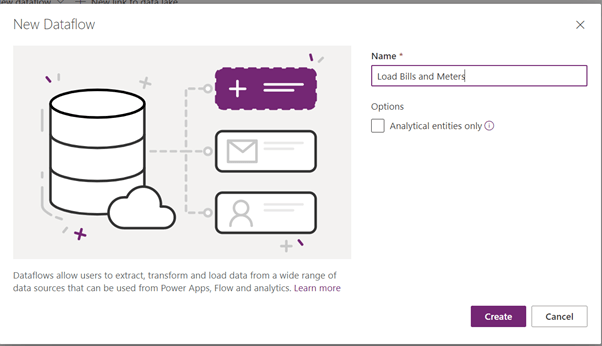
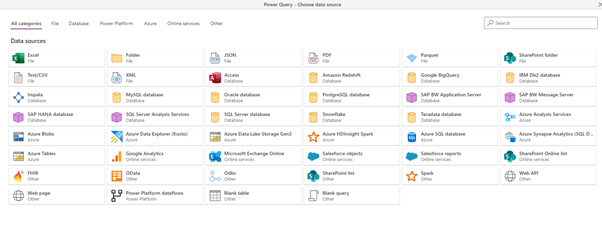
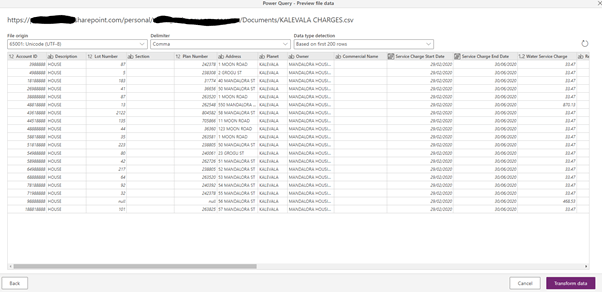
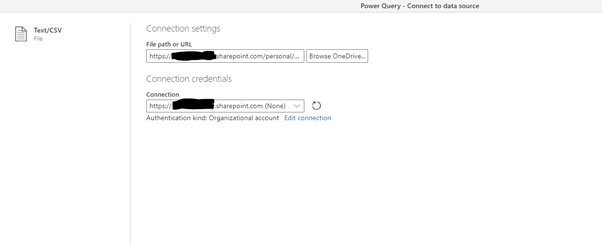
    Let’s load data from the Bills CSV file.
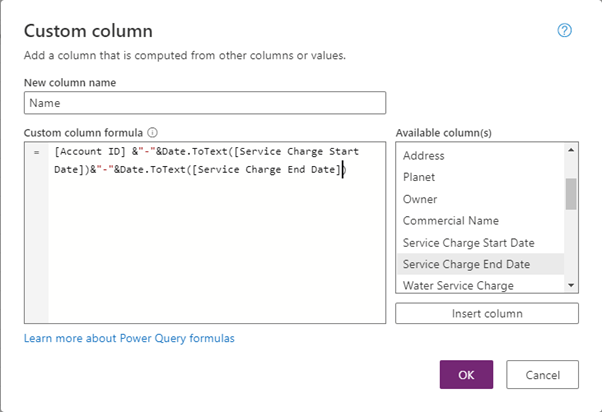
    Let’s add the unique Name column.
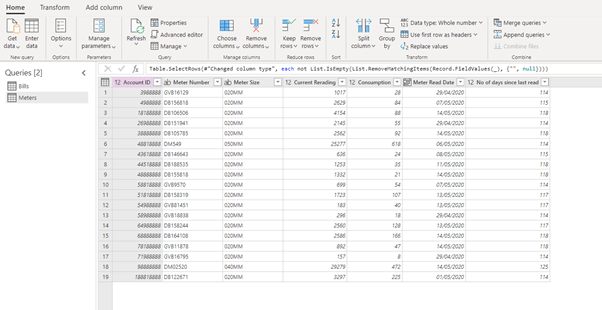
    Now let’s add another query, for Meter Data CSV file.

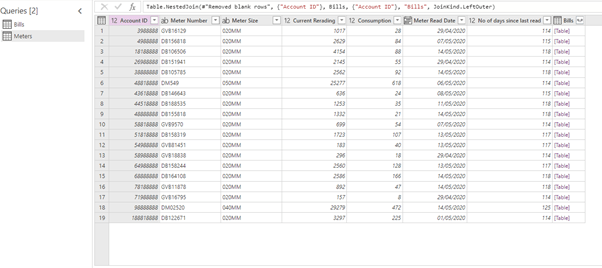
    To link two datasets, let’s merge tables on Account ID.

    Now we’ve got the link between Bills and Meters.

    Let’s add the uniques Meter Name column.

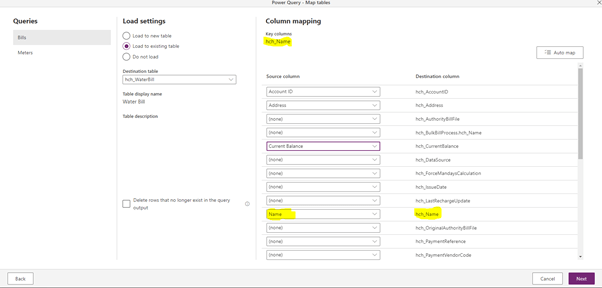
    Let’s continue to the mappings for Bills…
    And for Meters.

    Always make sure you mapped Names. or whatever your alternate key is.

    We also map the reference from Bill to Meter.
    Sendtask | To-Do Lists, Projects, Collaboration
    Epic Fail Quotes (@EpicFail_Quotes) | Twitter

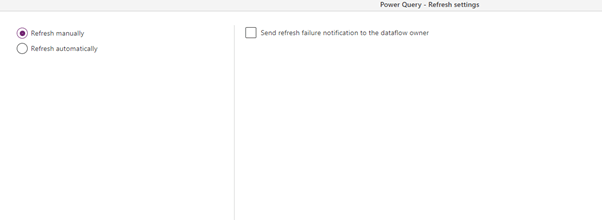
    Not so fast! The dataflow is failing with the tragically “informative error:

    There was a problem refreshing the dataflow, the dataflow definition contained errors. Please fix the problem and try again. Additional information: Unexpected exception, Message: Expression.Error: The column 'XXXX ID' of the table wasn't found.

    Whatever. Mama, I think I’ve just broke the engine…

    I don’t know but (after hours of thinking I remembered I fixed it before) I tried loading both tables separately and it worked. So it’s something about the reference column. I believe it got lost in Merge trying to figure out dependencies.

    Let’s save it and ourselves from the headache. Let’s split the calculation of the reference column and load to keep loading tables “independent”. This is the idea.

    Let’s duplicate the parent, Bills, query.
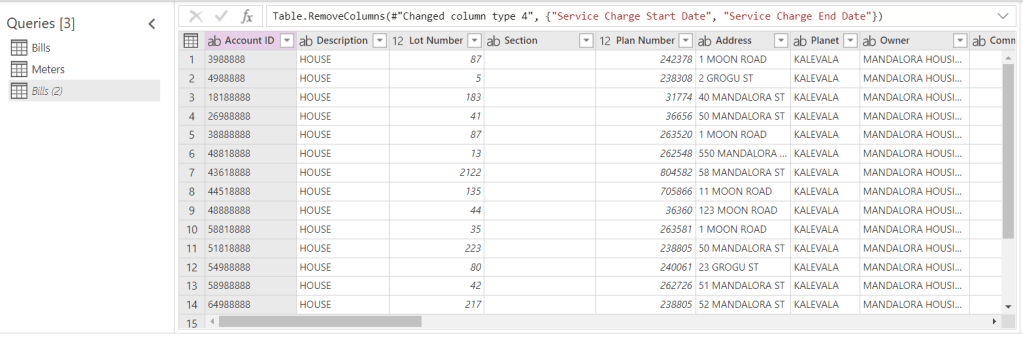
    The Merge to get the reference column, we perform on the duplicated set Bills(2). We aren’t going to load it though.

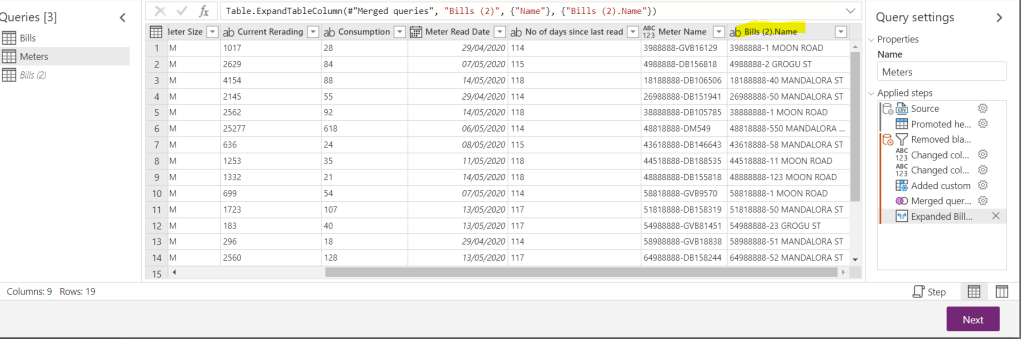
    We’ve got our reference to Bills(2). But datasets Bills and Meters aren’t linked.

    This time dataflow didn’t fail and data has been successfully loaded to Dataverse.

    Bills:

    Meters:
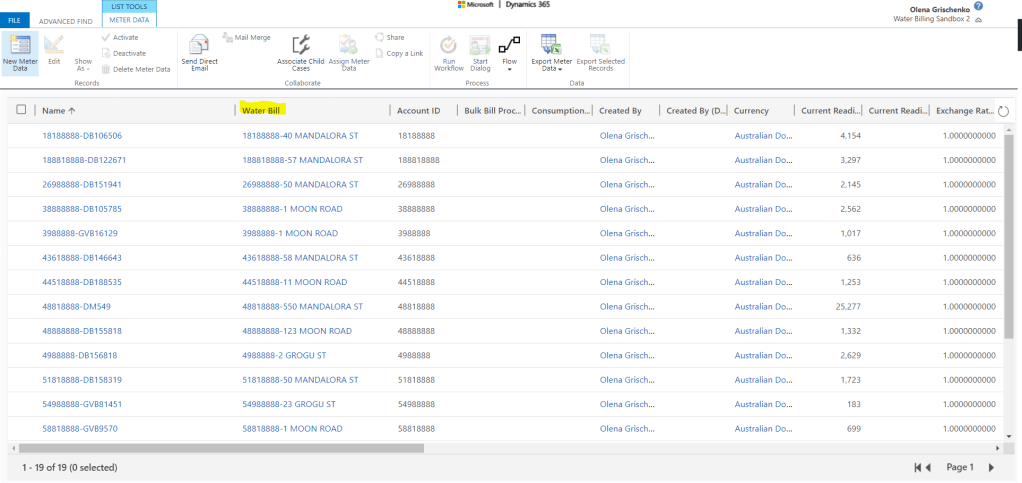
    With the link to Bills.

    Easy! 🤣🤣🤣

    Share this:

    • Share on LinkedIn (Opens in new window) LinkedIn
    • Email a link to a friend (Opens in new window) Email
    • Share on X (Opens in new window) X
    • Share on Facebook (Opens in new window) Facebook
    • Share on Telegram (Opens in new window) Telegram
    Like Loading…
  • Azure Functions in Power Platform multiple environments

    Azure Functions in Power Platform multiple environments

    January 7, 2021

    Working with real customer’s deployment requires managing multiple environments – at least Test and Production or additionally a Dev environment. One of the common patterns we use in the solutions is to use Azure Functions as an effective, serverless extension of the point-and-click Power Automate flows. This pattern utilises a Custom Connector created to embed the function call and parameters into the flow…

    https://technomancy.com.au/2021/01/06/azure-functions-in-power-platform-multiple-environments/

    Share this:

    • Share on LinkedIn (Opens in new window) LinkedIn
    • Email a link to a friend (Opens in new window) Email
    • Share on X (Opens in new window) X
    • Share on Facebook (Opens in new window) Facebook
    • Share on Telegram (Opens in new window) Telegram
    Like Loading…
  • Dataflows for Power Apps: transform fixed-width text files

    Dataflows for Power Apps: transform fixed-width text files

    January 4, 2021

    What is a fixed width text file? Data in a fixed–width text file is arranged in rows and columns, with one entry per row. Each column has a fixed width, specified in characters, which determines the maximum amount of data it can contain. No delimiters are used to separate the fields in the file.

    Could we load data from a fixed-width file with dataflow? Absolutely!

    This file below is relatively simple. The one for my real life project was really nasty. But let’s have a look at the sample below to understand the idea.

    This is the fixed-width text file I created for this tutorial:

    Fix-width text file

    Mapping for this file will be like:

    Column NameField PositionType
    Clinic Name1-98CHAR(98)
    Address99-150CHAR(52)
    Suburb151-200CHAR(50)
    State201-229CHAR(29)
    Post Code230-233CHAR(4)
    Fix-width file mapping

    Let’s create a dataflow to load this file.

    New dataflow

    I uploaded my text file to OneDrive.

    Dataflow – Choose data source
    Connect to the text file
    Select Delimiter

    Select “–Fixed width–” option for Delimiter.

    Zoomed – Select Delimiter
    Fix width – set column size

    Have a look at the mapping above to understand the idea.

    And the ned result looks really good.

    It is so simple! I didn’t think the same way when I looked at the file first. It looked as a very tricky thing to do. Yet it’s achieved without any coding.

    Have you started using dataflows yet?

    Share this:

    • Share on LinkedIn (Opens in new window) LinkedIn
    • Email a link to a friend (Opens in new window) Email
    • Share on X (Opens in new window) X
    • Share on Facebook (Opens in new window) Facebook
    • Share on Telegram (Opens in new window) Telegram
    Like Loading…
  • Dataflows for Power Apps: cyclic reference error with multiple data sources when you start with empty query

    Dataflows for Power Apps: cyclic reference error with multiple data sources when you start with empty query

    December 7, 2020

    As simple as this: if you don’t believe in solutions with Dataflow and just copy queries across most likely you are going to get the following error:

    I had multiple data sources: Dataverse and CSV file. Because I didn’t go through the normal order for steps but just started with an empty query and just copied queries across I started getting this error immediately after adding a Dataverse query.

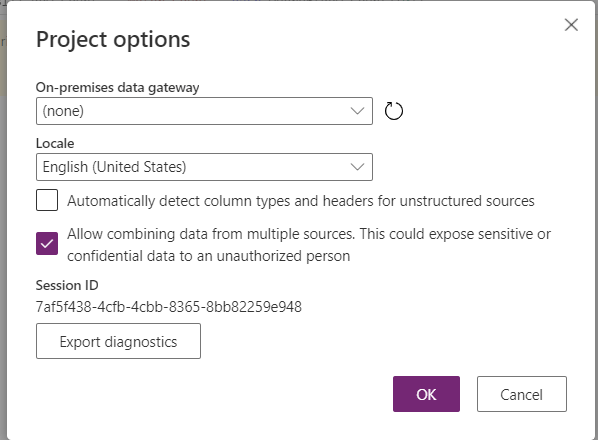
    You may get this error for different issue but in this case it’s not what it seems. To fix the issue you have to go to Project options and tick to allow combining data from multiple sources. Of course, you have to make sure you follow your data policies.

    In my case, all data belong to one organisation and it’s queried for the internal purpose.

    This fixed the issue.

    If you do it in a normal way, just by adding steps to the script, it asks you when you are trying to add another source. In this case it just “screams” in its own way.

    Share this:

    • Share on LinkedIn (Opens in new window) LinkedIn
    • Email a link to a friend (Opens in new window) Email
    • Share on X (Opens in new window) X
    • Share on Facebook (Opens in new window) Facebook
    • Share on Telegram (Opens in new window) Telegram
    Like Loading…
  • Dataflow for Power Apps: “section Section1;…” error on create

    Dataflow for Power Apps: “section Section1;…” error on create

    December 4, 2020

    This error for me occured when I was copying scripts and using blank queries.

    This is not my image, not my database, so don’t try to access it, please 😀 I found it in Internet to illustrate the point.

    section Section1; error

    This message is a little bit a lot not helping. If you deploy something to PROD at night it is also very stressful. So what do we do?

    We start here: https://docs.microsoft.com/en-us/azure/azure-portal/capture-browser-trace

    This is to try to capture a little bit more info before we ended up contacting Microsoft support.

    I was supper lucky, if it’s the right thing to say in the current situation.

    After my error appeared again, I click on Developer Tools in my browser (Ctrl+Shift+I) and did a little bit of recording on the Network tab. Pressed Create button again. Got the real error.

    Mine was like this:

    {“error”:{“code”:101200,”message”:”Invalid Cdm model Format”,”details”:”Name of ‘Attribute’ cannot contain leading or trailing blank spaces or consist only of whitespace.”}}

    I don’t know where did that white space come from. But we founded it and fixed it at the end.

    Happy days!

    Share this:

    • Share on LinkedIn (Opens in new window) LinkedIn
    • Email a link to a friend (Opens in new window) Email
    • Share on X (Opens in new window) X
    • Share on Facebook (Opens in new window) Facebook
    • Share on Telegram (Opens in new window) Telegram
    Like Loading…
Previous Page Next Page

Create a website or blog at WordPress.com


Loading Comments...
 

    • Subscribe Subscribed
      • Olena's Dynamics Blog (post-AI)
      • Join 60 other subscribers
      • Already have a WordPress.com account? Log in now.
      • Olena's Dynamics Blog (post-AI)
      • Subscribe Subscribed
      • Sign up
      • Log in
      • Report this content
      • View site in Reader
      • Manage subscriptions
      • Collapse this bar
    %d